🔍 Loupe: point at the UI, hand it to the agent
Loupe lets you point at any button, field or panel in any Mac app, say what should change and keep going. Then it hands the whole session to Claude Code or another coding agent as one prompt, with screenshots and element details attached.
By Dennis Bruijn · · 8 min read · #projects #agent-tools #macos #swift #accessibility
Here's how I used to describe UI to a coding agent: "The header above the cache button. No, not that one, the one in the settings window. Under Sync. Give it a bit more room." Then I'd take a screenshot, crop it, drag it into the chat, and hope the agent and I meant the same thing by "a bit".
Words are a terrible pointing device. So I built a better one. Loupe lives in the menu bar, and when you press ⌃⌥⌘L it turns your cursor into a jeweler's loupe for the whole screen: hover over an element, see exactly what it is, click it, type what should change, and move on to the next one. When you're done, the whole review becomes one Markdown prompt your agent can act on.
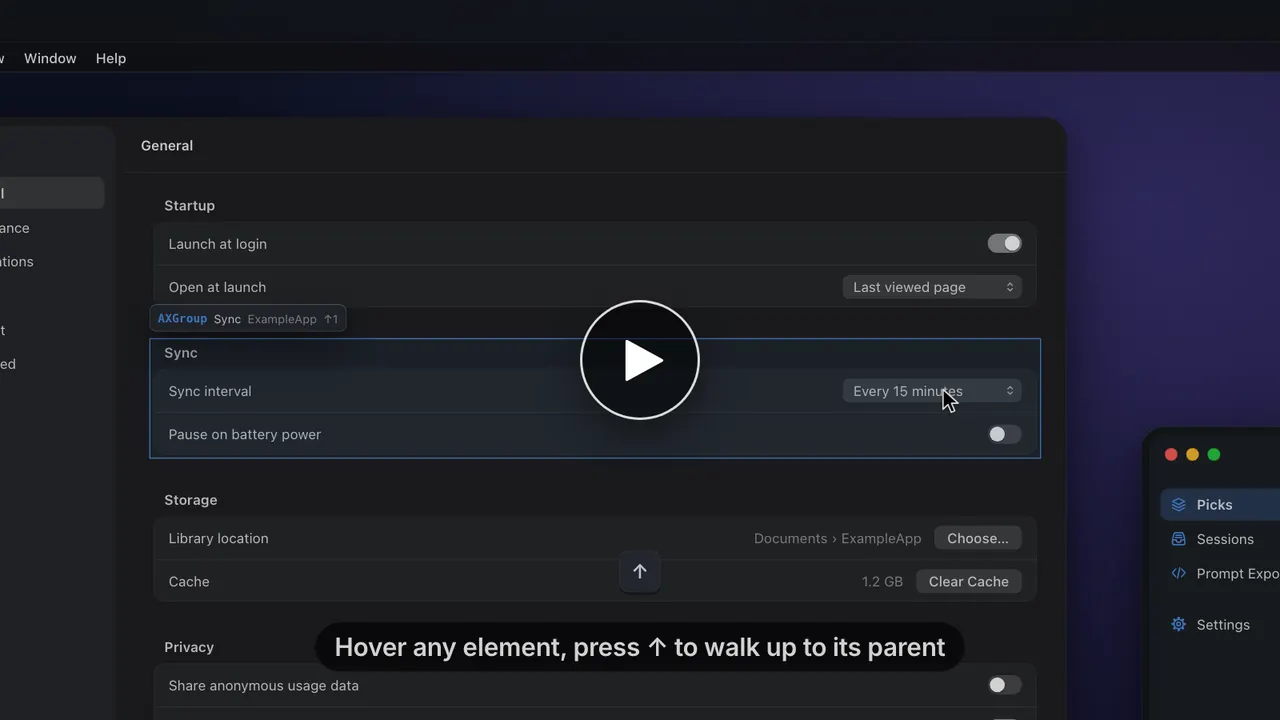
Every image and video in this post is an animated mockup rebuilt from source with Montage, not a screen recording. All the data in them is synthetic.
Pick anything, on every display
Pick Mode puts a transparent overlay on every display. A 1.5 pt accent outline follows the element under the cursor in whatever app owns it, and a small chip tells you its role, its label and the app. The fun part is the arrow keys: ↑ climbs to the parent element and the chip counts the steps (↑1, ↑2), ↓ comes back down. So if you meant "this whole Sync section" instead of "this one pop-up", you don't hunt for a gap between controls. You just press up.
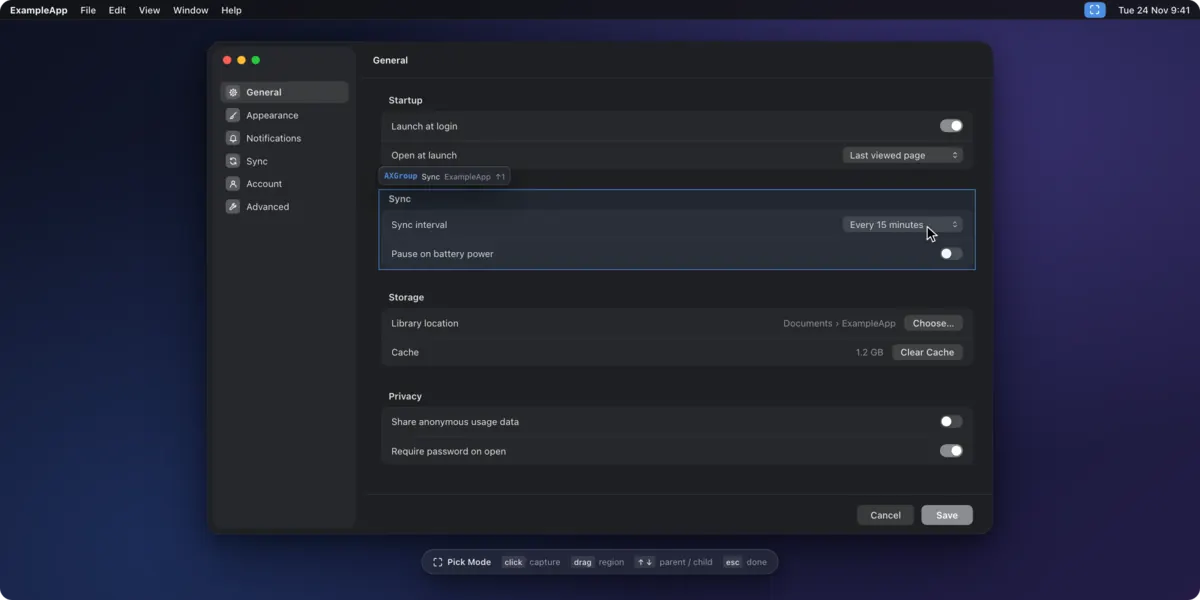
The app below stays frontmost the whole time and keeps its active look, which matters later for the screenshots. A click or ↩ captures the outlined element. If an app exposes nothing useful, you can drag out a region by hand, and when there's no accessibility element at all, Loupe falls back to the window bounds and draws a dashed outline instead.
It's easier to feel than to read, so here's a toy version you can poke at. Hover over the fake settings window below, press ↑ and ↓ to walk the hierarchy (click inside the playground first so it gets your keys), and click or press ↩ to "capture". It's about forty lines of JavaScript walking the DOM, not Loupe's Accessibility code, but it's the same idea.
<style>
  body { margin: 0; padding: 16px; background: #000; color: #e6e6e6; font: 13px/1.4 system-ui, sans-serif; }
  .win { max-width: 340px; margin: 0 auto; background: #1c1c1e; border: 1px solid #333; border-radius: 12px; padding: 10px 14px 14px; }
  .title { text-align: center; color: #8e8e93; font-size: 12px; margin-bottom: 6px; }
  .group { border: 1px solid #2c2c2e; border-radius: 8px; padding: 8px 10px; margin-top: 8px; }
  .h { font-weight: 600; margin-bottom: 4px; display: inline-block; }
  .row { display: flex; justify-content: space-between; align-items: center; padding: 3px 0; }
  .btn { background: #2c2c2e; border-radius: 6px; padding: 2px 8px; }
  .toggle { width: 30px; height: 18px; border-radius: 9px; background: #0a84ff; }
  #outline { position: absolute; display: none; pointer-events: none; border: 1.5px solid #0a84ff; border-radius: 5px; transition: all .08s; }
  #chip { position: absolute; display: none; pointer-events: none; background: #0a84ff; color: #fff; font: 11px ui-monospace, monospace; padding: 2px 6px; border-radius: 4px; white-space: nowrap; }
  .bar, #log { max-width: 340px; margin: 10px auto 0; text-align: center; color: #8e8e93; font-size: 12px; }
  #log { color: #7fd17f; font-family: ui-monospace, monospace; min-height: 1.4em; }
  kbd { border: 1px solid #444; border-radius: 4px; padding: 0 4px; font: 11px ui-monospace, monospace; }
</style>
<div class="win" data-role="AXWindow" data-label="Settings">
  <div class="title">Settings</div>
  <div class="group" data-role="AXGroup" data-label="Startup">
    <div class="row"><span data-role="AXStaticText" data-label="Open at login">Open at login</span><span class="toggle" data-role="AXCheckBox" data-label="Open at login"></span></div>
  </div>
  <div class="group" data-role="AXGroup" data-label="Sync">
    <div class="row"><span data-role="AXStaticText" data-label="Sync interval">Sync interval</span><span class="btn" data-role="AXPopUpButton" data-label="Every hour">Every hour ▾</span></div>
  </div>
  <div class="group" data-role="AXGroup" data-label="Storage">
    <span class="h" data-role="AXStaticText" data-label="Storage">Storage</span>
    <div class="row"><span>Cache: 214 MB</span><span class="btn" data-role="AXButton" data-label="Clear cache">Clear cache</span></div>
  </div>
</div>
<div class="bar">Hover · <kbd>↑</kbd> parent · <kbd>↓</kbd> child · click or <kbd>↩</kbd> capture</div>
<div id="log"></div>
<div id="outline"></div><div id="chip"></div>
<script>
  const outline = document.getElementById("outline");
  const chip = document.getElementById("chip");
  const log = document.getElementById("log");
  let base = null, current = null, trail = [], picks = 0;

  function show(el) {
    current = el;
    if (!el) { outline.style.display = chip.style.display = "none"; return; }
    const r = el.getBoundingClientRect(), x = r.left + scrollX, y = r.top + scrollY;
    Object.assign(outline.style, { display: "block", left: x - 3 + "px", top: y - 3 + "px", width: r.width + 6 + "px", height: r.height + 6 + "px" });
    chip.textContent = `${el.dataset.role} "${el.dataset.label}" ExampleApp${trail.length ? " ↑" + trail.length : ""}`;
    Object.assign(chip.style, { display: "block", left: x - 3 + "px", top: y + r.height + 6 + "px" });
  }

  function capture() {
    if (!current) return;
    picks += 1;
    log.textContent = `pick-${String(picks).padStart(3, "0")} · ${current.dataset.role} "${current.dataset.label}"`;
  }

  document.addEventListener("mousemove", (e) => {
    const el = e.target.closest("[data-role]");
    if (el !== base) { base = el; trail = []; show(el); }
  });

  document.addEventListener("keydown", (e) => {
    if (!current) return;
    if (e.key === "ArrowUp") {
      const parent = current.parentElement && current.parentElement.closest("[data-role]");
      if (parent) { trail.push(current); show(parent); }
      e.preventDefault();
    } else if (e.key === "ArrowDown") {
      if (trail.length) show(trail.pop());
      e.preventDefault();
    } else if (e.key === "Enter") {
      capture();
    }
  });

  document.addEventListener("click", capture);
</script>
Notes in the flow, screenshots only on click
Click an element and a composer springs open right beside it: a note, a priority, a category and tags. ↩ saves and keeps you picking, ⌘↩ saves, copies the session prompt and leaves Pick Mode, and Esc throws the pick away. You never leave the app you're reviewing, so a pass over a settings window is a rhythm of hover, click, type, return. The Picks badge in Loupe's sidebar counts along.
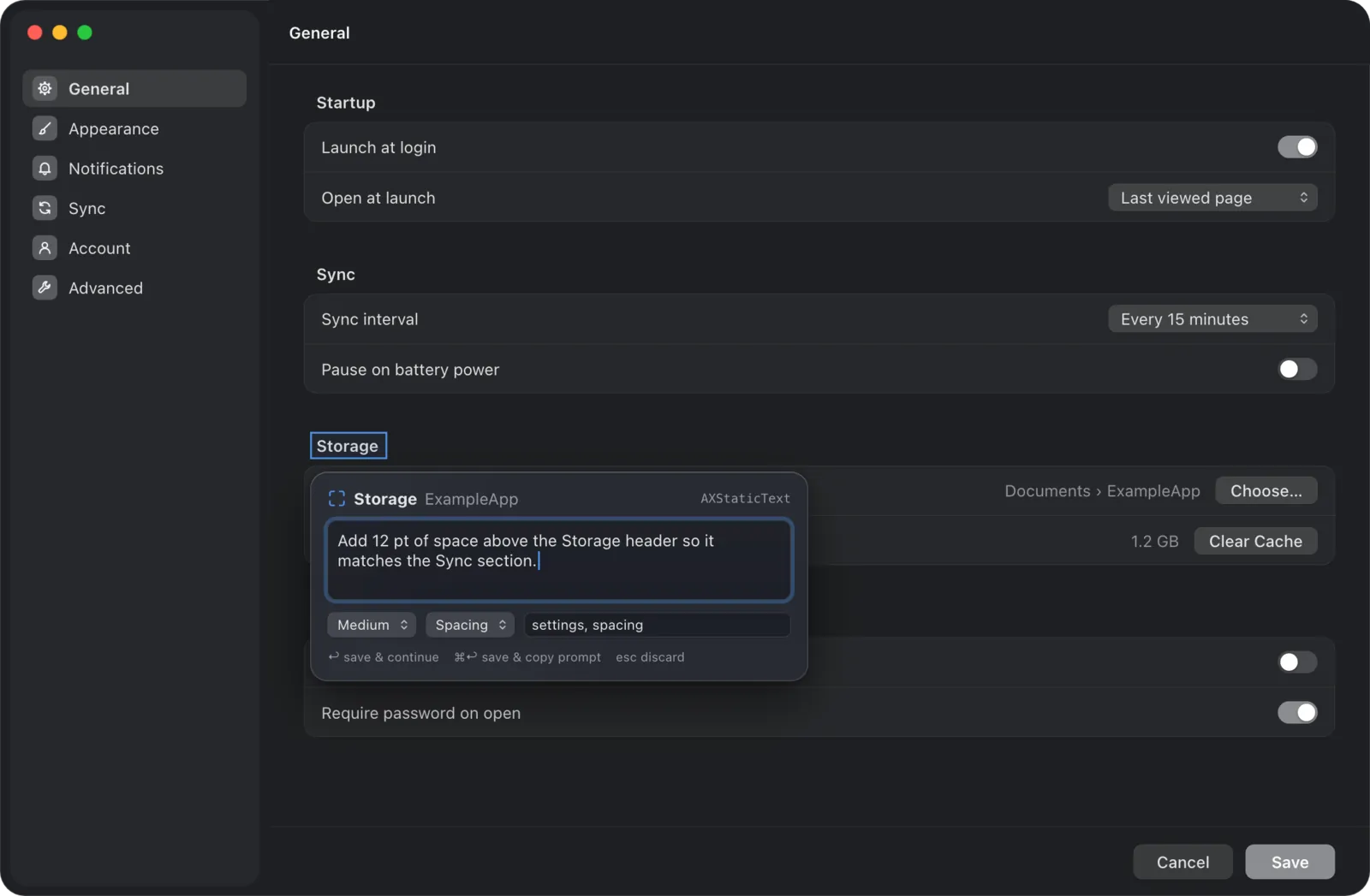
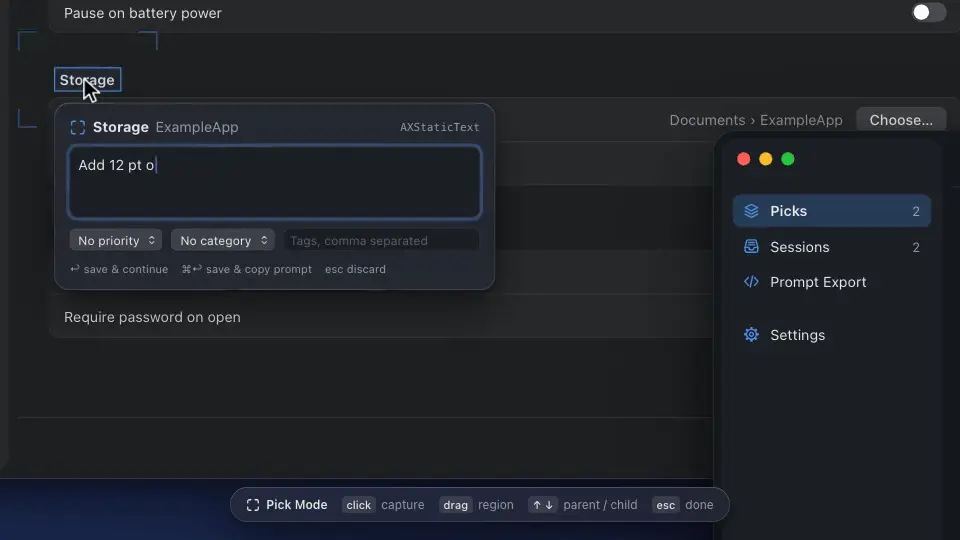
The capture loop, 8 seconds. Click the still to play it.
Here's the bit I care about most: nothing is captured while you hover. Only on click does ScreenCaptureKit grab the element plus 32 pt of context, at the display's backing scale, with Loupe's own windows left out. A full-window capture is there if you want it. Each pick also records what Accessibility knows about the element: app, bundle ID, window title, role and subrole, label, value, identifier, description, help, bounds, the ancestor hierarchy, up to 8 labeled nearby elements, and the page URL where a browser exposes one.
A tool that can see every app on your screen has to be careful about what it looks at, so a few rules are not optional:
- Secure text fields are never read or screenshotted.
- Excluded apps are never inspected or captured. 1Password, Bitwarden, Keychain Access and Passwords are on that list by default.
- No network. Loupe has no network client: no uploads, no accounts, no analytics, no AI calls. A prompt leaves your Mac only when you paste it somewhere.
- Retention is yours. Screenshots can be deleted after 7, 30 or 90 days while the notes stay.
One prompt, every time the same
When the review is done, Prompt Export turns the session into Markdown. You can toggle screenshots, annotations, technical metadata and resolved picks, switch between Concise and Detailed, pick absolute or relative screenshot paths, and edit the text before you copy it. Then it's Copy Prompt, Copy Images, Save Markdown… or Export Bundle…, which writes a ZIP with prompt.md, session.json and the screenshots.
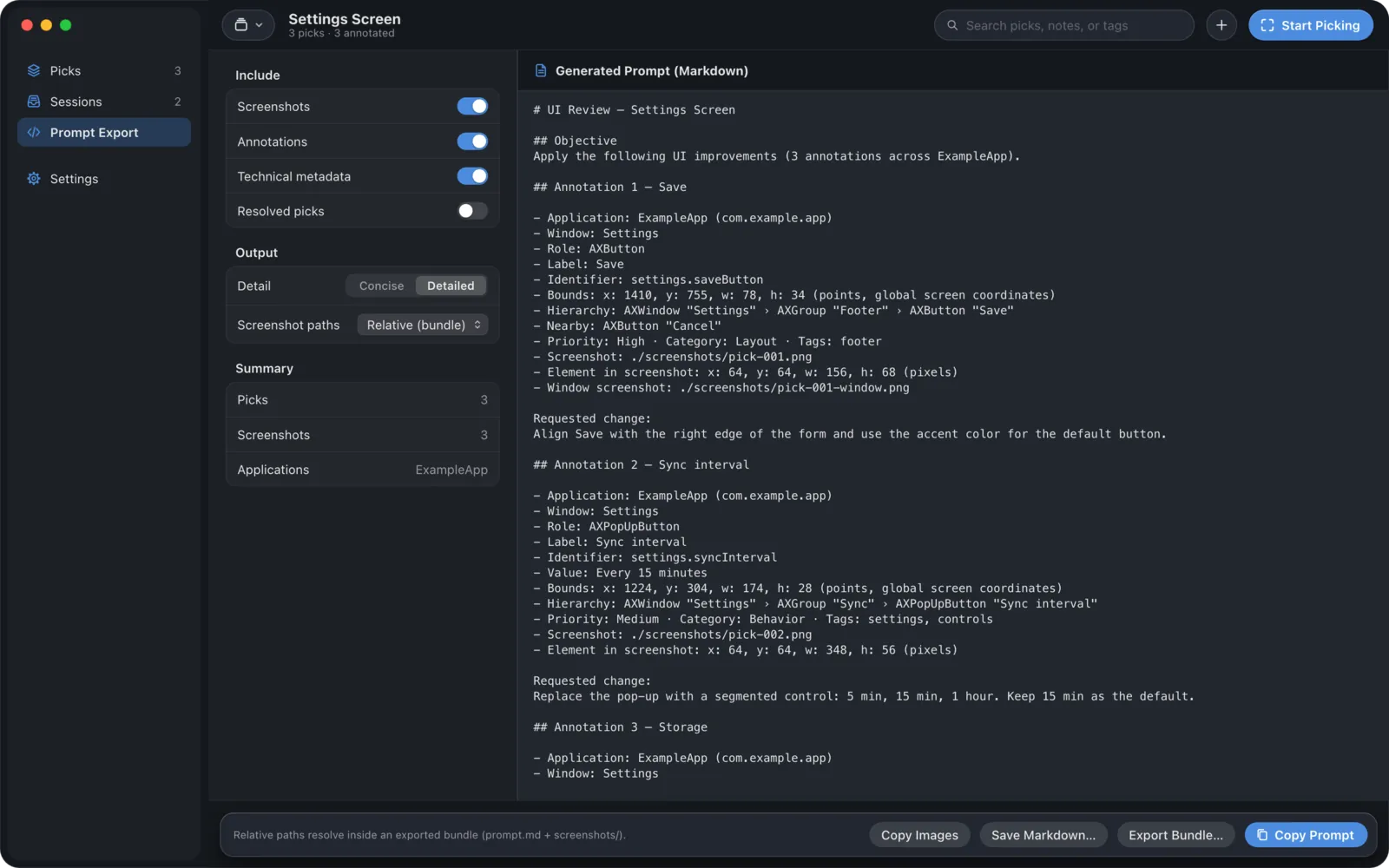
The prompt is a pure function of the session and the export options, so the same session always produces the same text. And Loupe never rewrites your notes: each Requested change is your text, verbatim. No helpful rephrasing, no "improved" version of what you meant. Here's a full prompt for one synthetic pick:
# UI Review — Settings polish

## Objective
Apply the following UI improvements (1 annotation across ExampleApp).

## Annotation 1 — Storage

- Application: ExampleApp (com.example.app)
- Window: Settings
- Role: AXStaticText
- Label: Storage
- Bounds: x: 412, y: 318, w: 96, h: 20 (points, global screen coordinates)
- Hierarchy: AXWindow "Settings" › AXGroup "Storage" › AXStaticText "Storage"
- Priority: Medium · Category: Spacing · Tags: settings, spacing
- Screenshot: ./screenshots/pick-003.png
- Element in screenshot: x: 64, y: 64, w: 192, h: 40 (pixels)

Requested change:
Add 12 pt of space above the Storage header so it matches the Sync section.

## Implementation instructions
- Inspect the relevant project before modifying code.
- Locate the UI components that correspond to each annotation.
- Apply the requested changes.
- Preserve unrelated functionality.
- Test the affected interfaces.
- Report the changes made and any unresolved items.
- Element details come from macOS Accessibility; they do not identify source files.
- Screenshot paths are relative to this file.
That second-to-last instruction is my favorite line in the whole app. Accessibility can tell the agent the element is an AXStaticText labeled "Storage" in a group called "Storage"; it can't tell it which source file drew it. Saying so up front saves the agent from confidently editing the wrong view.
"Deterministic" sounds abstract until you see it, so here's another toy. It's a cut-down sketch of the idea, not Loupe's PromptGenerator: type a note, flip between Concise and Detailed, and watch the fingerprint. Same input, same fingerprint, every time. Concise drops the bundle ID, bounds and hierarchy, just like the real thing (which drops a few more fields too).
<style>
  body { margin: 0; padding: 14px; background: #000; color: #e6e6e6; font: 13px/1.4 system-ui, sans-serif; }
  .controls { display: flex; gap: 8px; flex-wrap: wrap; align-items: center; margin-bottom: 10px; }
  textarea { width: 100%; box-sizing: border-box; background: #1c1c1e; color: #fff; border: 1px solid #333; border-radius: 8px; padding: 8px; font: inherit; resize: vertical; }
  select, button { background: #1c1c1e; color: #fff; border: 1px solid #333; border-radius: 6px; padding: 4px 8px; font: inherit; }
  button[aria-pressed="true"] { background: #0a84ff; border-color: #0a84ff; }
  pre { background: #0d0d0d; border: 1px solid #222; border-radius: 8px; padding: 10px; white-space: pre-wrap; font: 11.5px/1.5 ui-monospace, monospace; color: #cfcfcf; margin: 10px 0 6px; }
  #fp { font: 11px ui-monospace, monospace; color: #7fd17f; }
</style>
<textarea id="note" rows="2">Add 12 pt of space above the Storage header so it matches the Sync section.</textarea>
<div class="controls">
  <select id="priority"><option>Low</option><option selected>Medium</option><option>High</option></select>
  <button id="concise" aria-pressed="false">Concise</button>
  <button id="detailed" aria-pressed="true">Detailed</button>
</div>
<pre id="out"></pre>
<div id="fp"></div>
<script>
  const pick = {
    app: "ExampleApp", bundle: "com.example.app", window: "Settings",
    role: "AXStaticText", label: "Storage",
    bounds: "x: 412, y: 318, w: 96, h: 20",
    hierarchy: 'AXWindow "Settings" › AXGroup "Storage" › AXStaticText "Storage"',
  };
  let detailed = true;

  // A pure function: the same pick and options always give the same text.
  function prompt(p, o) {
    const lines = [
      "# UI Review — Settings polish", "",
      "## Annotation 1 — " + p.label, "",
      "- Application: " + p.app + (o.detailed ? " (" + p.bundle + ")" : ""),
      "- Window: " + p.window, "- Role: " + p.role, "- Label: " + p.label,
    ];
    if (o.detailed) lines.push("- Bounds: " + p.bounds + " (points, global screen coordinates)", "- Hierarchy: " + p.hierarchy);
    lines.push("- Priority: " + o.priority + " · Category: Spacing", "", "Requested change:", o.note);
    return lines.join("\n");
  }

  function fingerprint(text) {
    let h = 2166136261;
    for (let i = 0; i < text.length; i++) { h ^= text.charCodeAt(i); h = Math.imul(h, 16777619); }
    return (h >>> 0).toString(16).padStart(8, "0");
  }

  function render() {
    const text = prompt(pick, { detailed, priority: priority.value, note: note.value });
    out.textContent = text;
    fp.textContent = "fingerprint " + fingerprint(text);
    concise.setAttribute("aria-pressed", String(!detailed));
    detailed_btn.setAttribute("aria-pressed", String(detailed));
  }

  const note = document.getElementById("note"), priority = document.getElementById("priority");
  const out = document.getElementById("out"), fp = document.getElementById("fp");
  const concise = document.getElementById("concise"), detailed_btn = document.getElementById("detailed");
  note.addEventListener("input", render);
  priority.addEventListener("change", render);
  concise.addEventListener("click", () => { detailed = false; render(); });
  detailed_btn.addEventListener("click", () => { detailed = true; render(); });
  render();
</script>
The other half of the contract is the file on disk. Each session is a plain session.json plus PNG files, schema version 1, and that one file is the storage format, the export format and the surface for a future MCP companion. Fields are only ever added as optional within a schema version, never repurposed.
~/Library/Application Support/Loupe/
├── state.json                          current session id
└── Sessions/<session-uuid>/
    ├── session.json
    └── screenshots/
        ├── pick-001.png                element plus context
        └── pick-001-window.png         optional full window
Files, not a database. Export, import, deletion and outside tools all stay boring, and boring is exactly what you want from the thing that holds your notes.
Under the hood
Loupe is a native Mac app: Swift 6, SwiftUI and AppKit, the Accessibility API and ScreenCaptureKit, with the Xcode project generated by XcodeGen and committed. It runs on macOS 15 and later, and floating controls use Liquid Glass on macOS 26. The pipeline is short:
Pick Mode         overlay per display, 30 Hz poll
  → ElementInspector  AX hit test in the target app
  → Composer          note, priority, tags
  → ScreenCapturer    ScreenCaptureKit, on click
  → SessionStore      session.json + PNGs
  → PromptGenerator   Markdown prompt or ZIP bundle
A few of the decisions that made it work:
Hit-testing through your own overlay
Here's the catch with Pick Mode. You need a full-screen overlay to absorb the clicks, but a system-wide Accessibility hit test under the cursor would then find… Loupe. So Loupe asks CGWindowList for the topmost foreign window under the cursor, then asks that app to hit-test with AXUIElementCopyElementAtPosition. The cursor is polled at 30 Hz, a hit test only runs after the mouse moves, and Accessibility calls time out after 250 ms, so one hung app can't freeze the picker.
Panels that don't steal focus
The overlay and the composer are NSPanels with .nonactivatingPanel. The target app stays frontmost, so the screenshots show its real active state, and the panels still take your keystrokes.
A shortcut without Input Monitoring
The global shortcut (⌃⌥⌘L by default) is a Carbon RegisterEventHotKey. It needs no Input Monitoring permission and fails visibly when the combo is taken. Pick Mode gets its clicks and keys through its own overlay windows, so the only permissions are Accessibility (required) and Screen Recording (optional; without it, picks are saved with metadata only).
Five palettes, glass only where it floats
There are five palettes (Graphite, Slate, Midnight, Ember and System), each with light and dark variants. Every color resolves per appearance with NSColor(name:dynamicProvider:), so switching themes needs no extra code. Glass is reserved for floating chrome (the Pick Mode bar, the composer and the action bars), never for content, and Reduce Transparency is respected.
Tests where tests can reach
PromptGenerator is pure, ElementInspecting and ScreenCapturing are protocol boundaries around Accessibility and ScreenCaptureKit, and SessionStore takes its root folder as a parameter, so tests run against a temporary directory. There are 33 Swift Testing tests covering prompt generation, geometry (Retina scaling, displays at negative coordinates, popover placement), persistence, the ZIP round trip and the rejection of unsafe screenshot paths. The one thing they can't reach is Accessibility hit-testing itself: that was verified by hand against Chrome under a full-screen overlay.
What's not there yet
Loupe is in development. There's no tagged release and no notarized build yet, and it can't go on the Mac App Store at all: the App Sandbox blocks Accessibility inspection of other apps. The honest list of rough edges:
- It only sees what Accessibility exposes. Some Electron, web and custom-drawn UIs expose coarse elements or none, and then the window fallback applies. Chrome may need accessibility switched on at
chrome://accessibilityfirst. - An element spanning two displays is captured on the display that shows most of it.
- Scrolling in Pick Mode is absorbed by the overlay.
- Ad-hoc Debug builds can lose their Accessibility and Screen Recording grants after a rebuild.
- No MCP companion yet. The data contract and the inbox operations (list, get, claim and resolve) exist, but there's no transport.
And what's next, per the roadmap:
- The MCP companion: a separate, explicitly configured local process with a stdio transport that serves
session.jsonand may only change annotation status. - A browser extension adapter for page context that Accessibility doesn't expose.
- An automated test for Accessibility hit-testing under the overlay.
- A notarized Developer ID build attached to GitHub Releases.
That MCP companion is the one I'm itching for. Right now the loop is "pick, copy, paste". The inbox operations are already there in SessionStore: list, get, claim and resolve. Once the companion gives them a transport, an agent can claim a pick and mark it resolved, and that status is the only thing it is allowed to change.
Loupe is unofficial and not affiliated with or endorsed by Anthropic. Claude and Claude Code are trademarks of Anthropic.
Loupe has its own card on the projects page, with the demo loop, the explainer and the stack at a glance.
Curious about the source? It's private, but access can be granted to anyone interested in contributing. Get in touch.