⏱️ Tempo: drag a task onto your week
Tempo puts a kanban board and a time-blocking calendar in one workspace: capture a task, sort it on the board, drag it onto your week and finish it. Its two-way sync engine for Google Calendar and Google Tasks runs against simulated APIs for now.
By Dennis Bruijn · · 10 min read · #projects #web-apps #typescript #react #hono #postgresql
A to-do list knows what you have to do. A calendar knows when you're free. Neither one is very good at the other's job, and the gap between them is where tasks go to quietly age. Tempo is for people who plan their day in time blocks, and its whole idea fits in one gesture: pick up a card, drop it on Tuesday at 08:00, done.
Fittingly for something called Tempo, the explainer is cut to a 100 BPM metronome. It's 28 seconds, has no audio, and keeps time with a little four-dot beat pill.
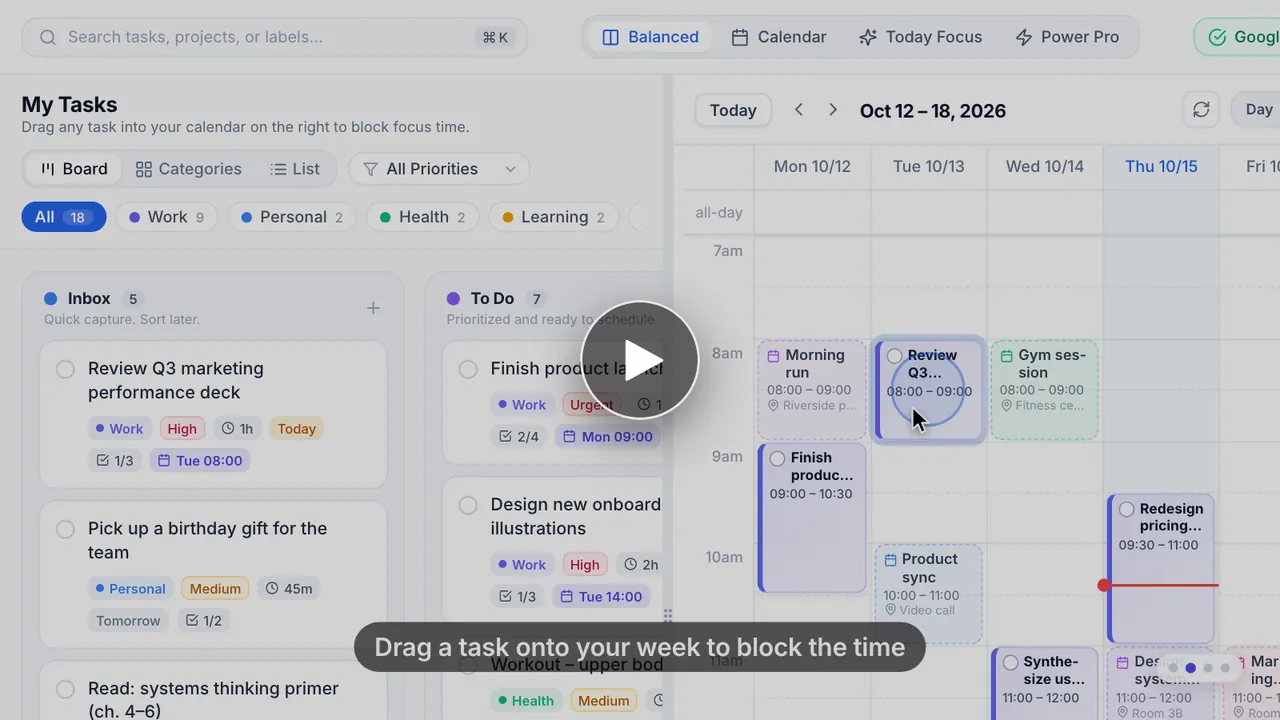
Mockups rebuilt from source with Montage, not captures. Google sync runs against simulated APIs.
Before the tour, one honest line up front: the sync logic is real, but the Google Calendar and Google Tasks on the other end are simulated. I'll come back to exactly what that means. First, the fun part.
Drop a card, get a work session
Drop a card on the time grid and Tempo creates a work session that starts at the slot under the pointer and lasts the task's estimate. A 60-minute task dropped on 08:00 becomes 08:00 to 09:00.
The detail I like most: the task itself is not copied. A session points at its task, so one task can have zero, one or several sessions. Split a big job across three mornings and it's still one card on the board. Mark it done and its sessions stay attached, so the calendar keeps a record of the time you actually spent.
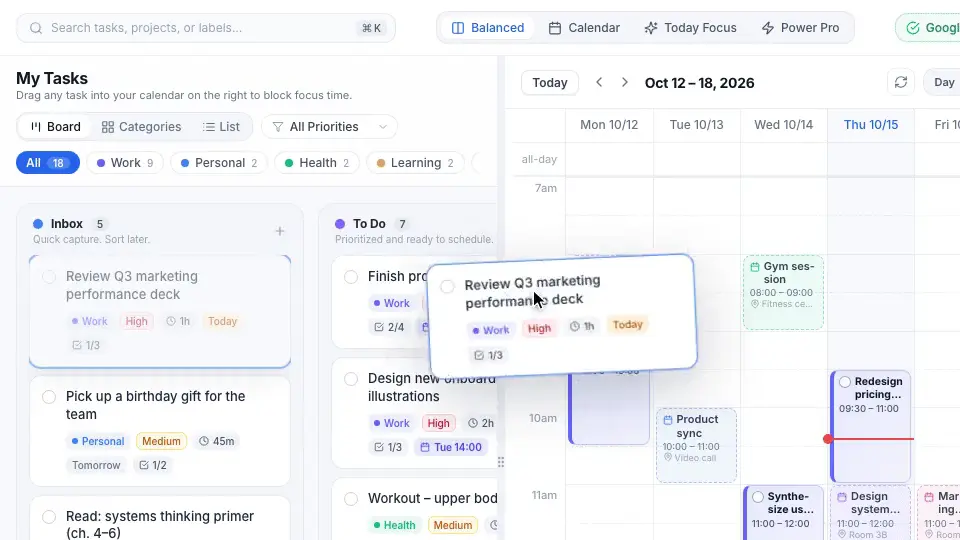
Drag a task onto the week to schedule it (6-second loop). Mockup rebuilt from source with Montage.
How the drag bridge works
Two drag systems share the screen. @dnd-kit handles sorting cards on the board, inside and across columns. Dragging to the calendar uses FullCalendar's Draggable on [data-fc-draggable="true"], plus an HTML5 drop bridge. On drop, the bridge reads the .fc-timegrid-col[data-date] and .fc-timegrid-slot-lane[data-time] under the pointer and posts a scheduled_task_sessions row with endTime = startTime + estimatedMinutes.
That's a nice, small idea, so here's a toy version of it in a few lines. It isn't Tempo's code, just the same trick: each column carries a data-date, each slot a data-time, and on drop we look at what's under the pointer. Drag a card onto the grid, a few times if you like, and watch the session count on the card go up while the task stays put.
<style>
  :root { color-scheme: dark; }
  body { margin: 0; padding: 12px; background: #000; color: #e5e5e5; font: 13px/1.4 system-ui, sans-serif; }
  .wrap { display: grid; grid-template-columns: 120px 1fr; gap: 10px; }
  .card { background: #111; border: 1px solid #333; border-radius: 8px; padding: 8px; margin-bottom: 6px;
          cursor: grab; touch-action: none; user-select: none; }
  .card small { display: block; color: #888; }
  .ghost { position: fixed; pointer-events: none; opacity: .85; width: 110px; z-index: 9; border-color: #2563eb; }
  .grid { display: grid; grid-template-columns: repeat(3, 1fr); gap: 4px; }
  .col h4 { margin: 0 0 4px; font: 500 12px system-ui; color: #888; }
  .slot { height: 22px; border-top: 1px dashed #222; position: relative; font-size: 10px; color: #444; }
  .slot.hot { background: rgb(37 99 235 / .3); }
  .session { position: absolute; left: 2px; right: 2px; top: 1px; z-index: 1; pointer-events: none;
             background: #2563eb; color: #fff; border-radius: 4px; padding: 2px 4px; overflow: hidden; }
  pre { background: #0a0a0a; border: 1px solid #222; border-radius: 8px; padding: 8px; margin: 10px 0 0;
        white-space: pre-wrap; color: #9ca3af; font-size: 11px; }
</style>
<div class="wrap">
  <div>
    <div class="card" data-task="t1" data-title="Write release notes" data-estimate="60"></div>
    <div class="card" data-task="t2" data-title="Reply to review" data-estimate="30"></div>
    <div class="card" data-task="t3" data-title="Sync tests" data-estimate="90"></div>
  </div>
  <div class="grid" id="grid"></div>
</div>
<pre id="out">Drag a card onto a slot.</pre>
<script>
  const hhmm = (m) => String(Math.floor(m / 60)).padStart(2, "0") + ":" + String(m % 60).padStart(2, "0");
  const toMin = (t) => +t.slice(0, 2) * 60 + +t.slice(3);
  const sessions = {};
  const label = (c) => (c.innerHTML = c.dataset.title + "<small>" + c.dataset.estimate + " min · " +
    (sessions[c.dataset.task] || 0) + " sessions</small>");
  document.querySelectorAll(".card").forEach(label);

  for (const [date, day] of [["2026-11-23", "Mon"], ["2026-11-24", "Tue"], ["2026-11-25", "Wed"]]) {
    const col = document.createElement("div");
    col.className = "col"; col.dataset.date = date; col.innerHTML = "<h4>" + day + "</h4>";
    for (let m = 8 * 60; m < 12 * 60; m += 30) {
      const slot = document.createElement("div");
      slot.className = "slot"; slot.dataset.time = hhmm(m); slot.textContent = hhmm(m);
      col.append(slot);
    }
    document.getElementById("grid").append(col);
  }

  let ghost = null, card = null, hot = null;
  const under = (e) => document.elementFromPoint(e.clientX, e.clientY)?.closest("[data-time]");
  document.addEventListener("pointerdown", (e) => {
    card = e.target.closest(".card"); if (!card) return;
    ghost = card.cloneNode(true); ghost.classList.add("ghost"); document.body.append(ghost);
    card.setPointerCapture(e.pointerId); move(e);
  });
  const move = (e) => {
    if (!ghost) return;
    ghost.style.left = e.clientX + 8 + "px"; ghost.style.top = e.clientY + 8 + "px";
    hot?.classList.remove("hot"); hot = under(e); hot?.classList.add("hot");
  };
  document.addEventListener("pointermove", move);
  document.addEventListener("pointerup", (e) => {
    if (!ghost) return;
    ghost.remove(); ghost = null; hot?.classList.remove("hot");
    const slot = under(e), col = slot?.closest("[data-date]");
    if (!slot || !col) return;
    const est = +card.dataset.estimate, start = toMin(slot.dataset.time);
    const s = document.createElement("div");
    s.className = "session"; s.style.height = (est / 30) * 22 - 3 + "px"; s.textContent = card.dataset.title;
    slot.append(s);
    sessions[card.dataset.task] = (sessions[card.dataset.task] || 0) + 1; label(card);
    document.getElementById("out").textContent = "scheduled_task_sessions row\n" + JSON.stringify({
      taskId: card.dataset.task,
      startTime: col.dataset.date + "T" + slot.dataset.time,
      endTime: col.dataset.date + "T" + hhmm(start + est),
    }, null, 2);
  });
</script>
Find free time, without squinting at the week
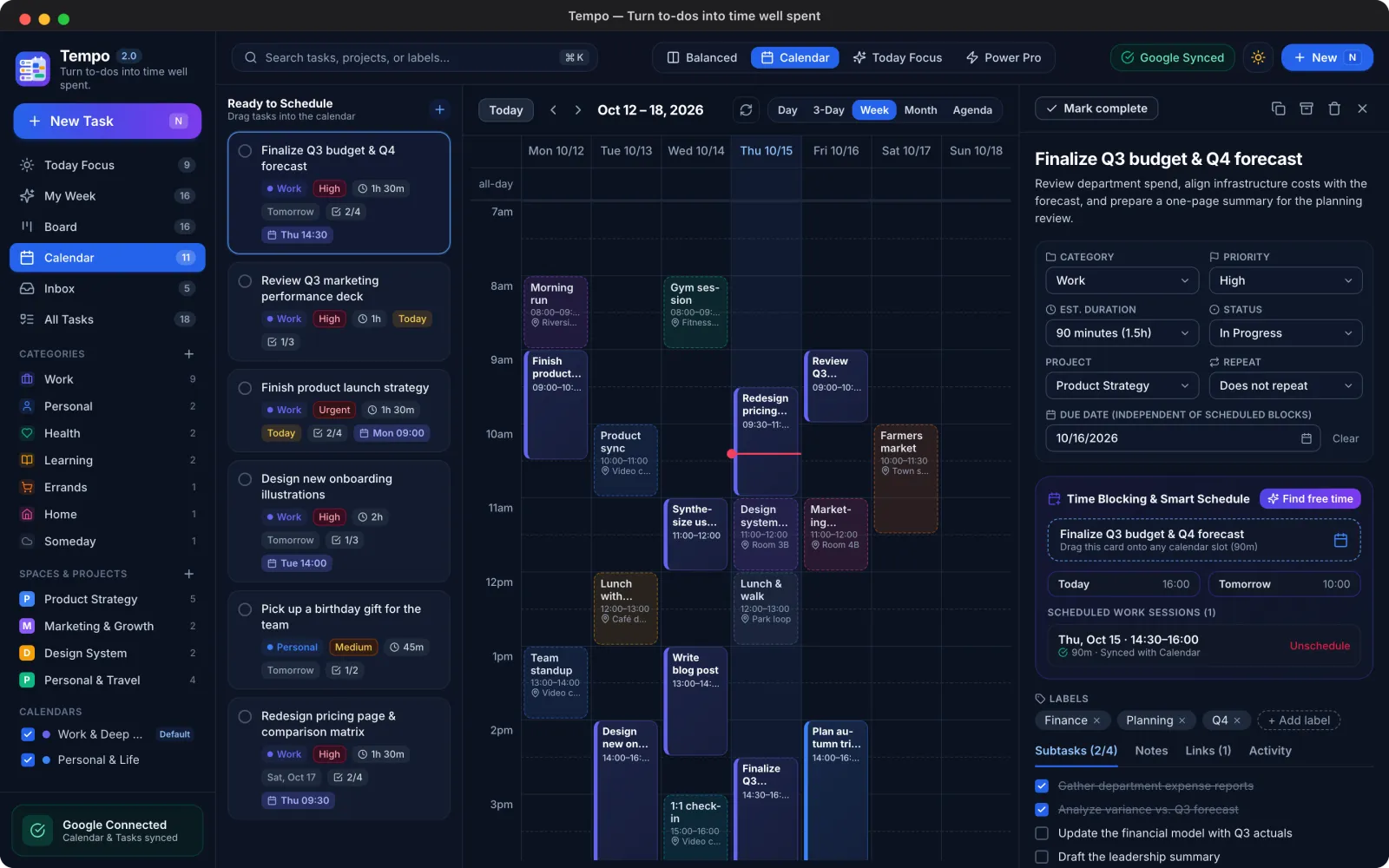
Dragging is great when you already know where a task goes. When you don't, open the task: the inspector suggests up to 3 free slots for the task's estimate. It looks 14 days ahead, stays inside your working hours (09:00 to 18:00, Monday to Friday by default) and steps around the sessions and events already on the calendar.
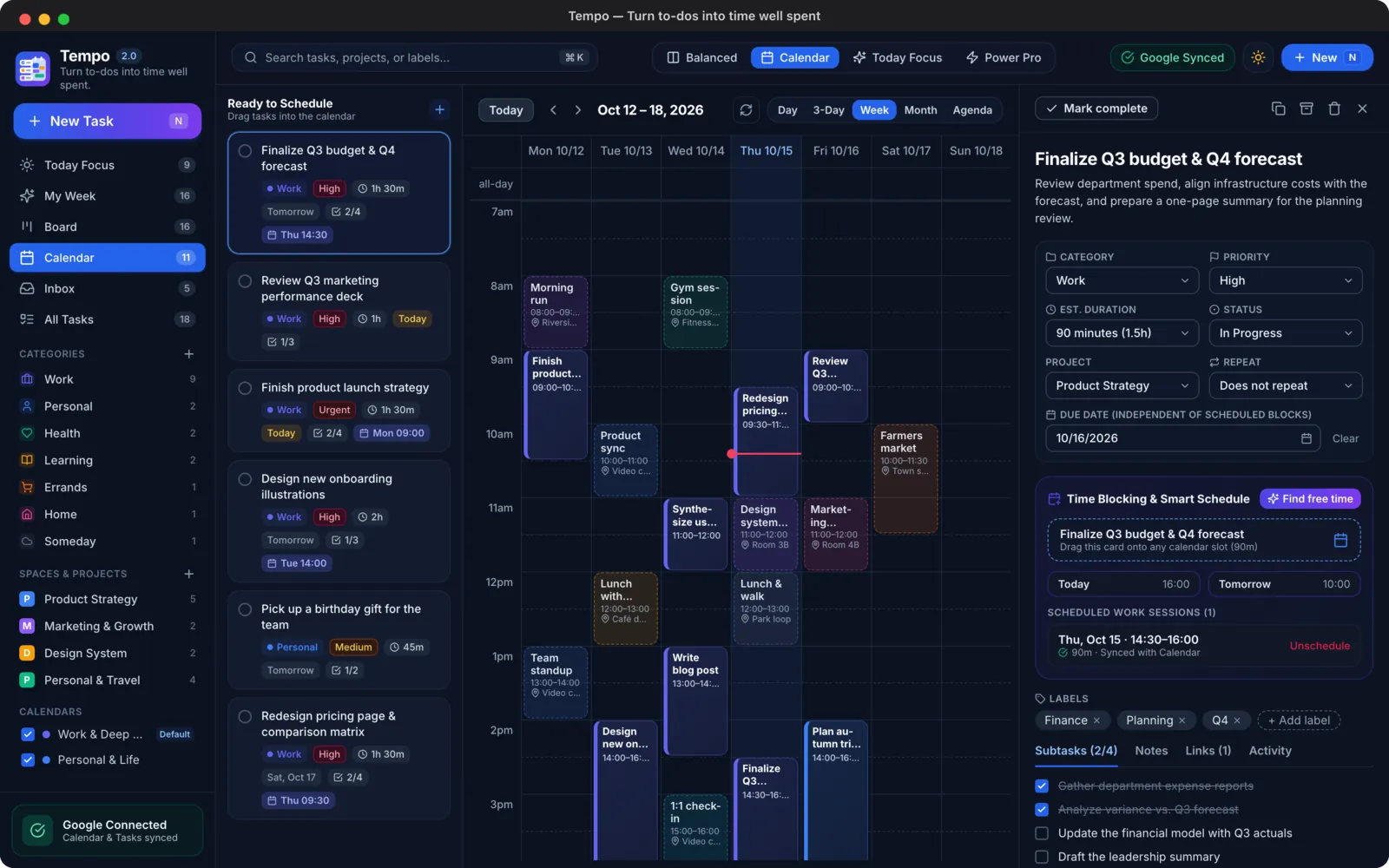
Calendar First, with Time Blocking & Smart Schedule in the inspector. Mockup rebuilt from source with Montage.
The scheduler lives in packages/shared, next to detectSessionConflicts and computeDailyFocusStats, as findFreeTimeSlots. The API and the web app import the same package, so they can't disagree about what "free" means.
Here's the shape of the rule as a toy. The week below is made up: a fully booked Monday, a choppy Tuesday and Wednesday, an open Thursday afternoon, a packed Friday and a weekend the finder skips on purpose. Change the estimate and see where the three suggestions land. (The real scheduler is in Tempo's source; this one only takes the first gap that fits on each day, to keep it short.)
<style>
  :root { color-scheme: dark; }
  body { margin: 0; padding: 12px; background: #000; color: #e5e5e5; font: 13px/1.4 system-ui, sans-serif; }
  select { background: #111; color: #e5e5e5; border: 1px solid #333; border-radius: 6px; padding: 2px 6px; font: inherit; }
  .row { display: grid; grid-template-columns: 64px 1fr; align-items: center; gap: 8px; margin: 3px 0; font-size: 11px; color: #888; }
  .bar { position: relative; height: 12px; background: #0d0d0d; border: 1px solid #1f1f1f; border-radius: 4px; overflow: hidden; }
  .off .bar { opacity: .25; }
  .seg { position: absolute; top: 0; bottom: 0; }
  .busy { background: #3f3f46; }
  .pick { background: #2563eb; }
  ol { margin: 10px 0 0; padding-left: 20px; }
  li { margin: 2px 0; }
</style>
<label>Task estimate
  <select id="est">
    <option value="30">30 min</option><option value="60" selected>60 min</option>
    <option value="120">2 h</option><option value="240">4 h</option>
  </select>
</label>
<div id="days"></div>
<ol id="out"></ol>
<script>
  const START = 9 * 60, END = 18 * 60, NAMES = ["Mon", "Tue", "Wed", "Thu", "Fri", "Sat", "Sun"];
  // [day, start, end] in minutes; day 0 is a Monday, days 7 to 13 are the next week
  const busy = [[0, 540, 1080], [1, 540, 750], [1, 780, 1080], [2, 540, 600], [2, 630, 1020], [3, 540, 900], [4, 540, 1080]];
  const hhmm = (m) => String(Math.floor(m / 60)).padStart(2, "0") + ":" + String(m % 60).padStart(2, "0");
  const dayName = (d) => NAMES[d % 7] + (d > 6 ? " (wk 2)" : "");

  function findFree(est) {
    const found = [];
    for (let d = 0; d < 14 && found.length < 3; d++) {
      if (d % 7 > 4) continue; // working days only
      let t = START, fit = null;
      for (const [, s, e] of busy.filter((b) => b[0] === d).sort((a, b) => a[1] - b[1])) {
        if (s - t >= est) { fit = t; break; }
        t = Math.max(t, e);
      }
      if (fit === null && END - t >= est) fit = t;
      if (fit !== null) found.push([d, fit]);
    }
    return found;
  }

  const pct = (m) => ((m - START) / (END - START)) * 100 + "%";
  function render() {
    const est = +document.getElementById("est").value, picks = findFree(est);
    let html = "";
    for (let d = 0; d < 14; d++) {
      const segs = busy.filter((b) => b[0] === d).map(([, s, e]) =>
        '<i class="seg busy" style="left:' + pct(s) + ";width:calc(" + pct(e) + " - " + pct(s) + ')"></i>').join("") +
        picks.filter((p) => p[0] === d).map(([, s]) =>
        '<i class="seg pick" style="left:' + pct(s) + ";width:calc(" + pct(s + est) + " - " + pct(s) + ')"></i>').join("");
      html += '<div class="row' + (d % 7 > 4 ? " off" : "") + '"><span>' + dayName(d) + '</span><div class="bar">' + segs + "</div></div>";
    }
    document.getElementById("days").innerHTML = html;
    document.getElementById("out").innerHTML = picks.length
      ? picks.map(([d, s]) => "<li>" + dayName(d) + " " + hhmm(s) + " to " + hhmm(s + est) + "</li>").join("")
      : "<li>No room in the next 14 days</li>";
  }
  document.getElementById("est").addEventListener("change", render);
  render();
</script>
A real sync engine, pointed at a simulated Google
This is the part I want to be precise about, because it's the easiest one to oversell.
Tempo works without any Google credentials. Out of the box, Connect in Integrations links a demo account, and sync runs against wire-compatible Google Calendar v3 and Google Tasks v1 stores inside the API process (GoogleCalendarWireStore and GoogleTasksWireStore). Set GOOGLE_CLIENT_ID and GOOGLE_CLIENT_SECRET and Connect runs the real Google OAuth flow instead. Even then, only the OAuth token exchange and the userinfo call reach Google; Calendar and Tasks calls still go to those in-process stores, which live in memory and reset when the API restarts.
So: the plumbing is real, the far end of the pipe is a very convincing stand-in. Here's what the plumbing does.
| Piece | What Tempo does |
|---|---|
| Sign-in | Authorization code flow with PKCE (S256), scopes openid, email, profile, Calendar and Tasks |
| Tokens | Access and refresh tokens encrypted with AES-256-GCM using TOKEN_ENCRYPTION_KEY before they're stored |
| Calendar events | One event per Tempo session. Moving the event in Google moves the session in Tempo |
| Incremental sync | syncToken and etag per calendar in integration_sync_state; a 410 Gone drops the token and runs a full reconciliation |
| Tasks import | A unique mapping on (user_id, source, external_id) prevents duplicates |
| Tasks conflicts | Last-write-wins on title, description, due date and status, comparing Google's updated with Tempo's updatedAt |
| Tempo-only fields | Estimate, priority, category, project and sessions are never overwritten |
| Offline | A 503 or network error keeps the change in Postgres as pending_retry; the next sync pushes it |
Only touching its own events
The rule I'd want from any app with write access to my calendar: Tempo only ever edits or deletes the events it created. Every session's event carries a private tag in extendedProperties.private:
{
  "extendedProperties": {
    "private": {
      "tempoSessionId": "…",
      "tempoTaskId": "…",
      "tempoManaged": "true"
    }
  }
}
Unscheduling or deleting a task removes only its Tempo-managed events, never your other ones. And a Google Tasks due date is never treated as a calendar time slot, which is exactly the kind of thing you only notice when an app gets it wrong.
When Google has a bad day
When Google Calendar is unavailable, edits are saved locally, the session is marked pending_retry, the top bar says Sync Pending Retry, and the next sync pushes the change. Integrations can even simulate an outage so you can watch it happen. Here's the same loop as a toy you can break on purpose: take Calendar down, move the session, then bring it back and sync.
<style>
  :root { color-scheme: dark; }
  body { margin: 0; padding: 12px; background: #000; color: #e5e5e5; font: 13px/1.4 system-ui, sans-serif; }
  .bar { display: flex; flex-wrap: wrap; gap: 6px; align-items: center; margin-bottom: 10px; }
  button { background: #111; color: #e5e5e5; border: 1px solid #333; border-radius: 6px; padding: 5px 10px; font: inherit; cursor: pointer; }
  button:hover { border-color: #2563eb; }
  .pill { font-size: 11px; padding: 2px 8px; border-radius: 999px; border: 1px solid #333; }
  .up { color: #4ade80; } .down { color: #f87171; }
  #banner { display: none; background: rgb(234 179 8 / .15); color: #facc15; border: 1px solid rgb(234 179 8 / .4);
            border-radius: 6px; padding: 4px 8px; margin-bottom: 10px; font-size: 12px; }
  .session { background: #2563eb; color: #fff; border-radius: 6px; padding: 6px 8px; display: inline-block; }
  .session small { opacity: .8; margin-left: 6px; }
  #log { margin: 10px 0 0; padding: 8px; background: #0a0a0a; border: 1px solid #222; border-radius: 8px;
         font: 11px ui-monospace, monospace; color: #9ca3af; white-space: pre-wrap; min-height: 4em; }
</style>
<div id="banner">Sync Pending Retry</div>
<div class="bar">
  <span>Google Calendar</span><span id="api" class="pill up">reachable</span>
  <button id="toggle">Simulate outage</button>
  <button id="move">Move session +30 min</button>
  <button id="sync">Sync now</button>
</div>
<div class="session" id="session"></div>
<div id="log"></div>
<script>
  let up = true, start = 8 * 60, status = "synced";
  const $ = (id) => document.getElementById(id);
  const hhmm = (m) => String(Math.floor(m / 60)).padStart(2, "0") + ":" + String(m % 60).padStart(2, "0");
  const log = (line) => ($("log").textContent = line + "\n" + $("log").textContent);
  function render() {
    $("session").innerHTML = "Write release notes, Tue " + hhmm(start) + "<small>syncStatus: " + status + "</small>";
    $("banner").style.display = status === "pending_retry" ? "block" : "none";
    $("api").textContent = up ? "reachable" : "503";
    $("api").className = "pill " + (up ? "up" : "down");
    $("toggle").textContent = up ? "Simulate outage" : "End outage";
  }
  $("toggle").onclick = () => { up = !up; log(up ? "Calendar is back." : "Calendar now answers 503."); render(); };
  $("move").onclick = () => {
    start += 30;
    if (up) { status = "synced"; log("Moved to " + hhmm(start) + ". The event follows."); }
    else { status = "pending_retry"; log("Moved to " + hhmm(start) + ". Calendar failed, kept locally as pending_retry."); }
    render();
  };
  $("sync").onclick = () => {
    if (status !== "pending_retry") log("Nothing pending.");
    else if (!up) log("Still down. The change stays pending_retry.");
    else { status = "synced"; log("Pushed the pending change. Event now at " + hhmm(start) + "."); }
    render();
  };
  render();
</script>
Four layouts, two themes
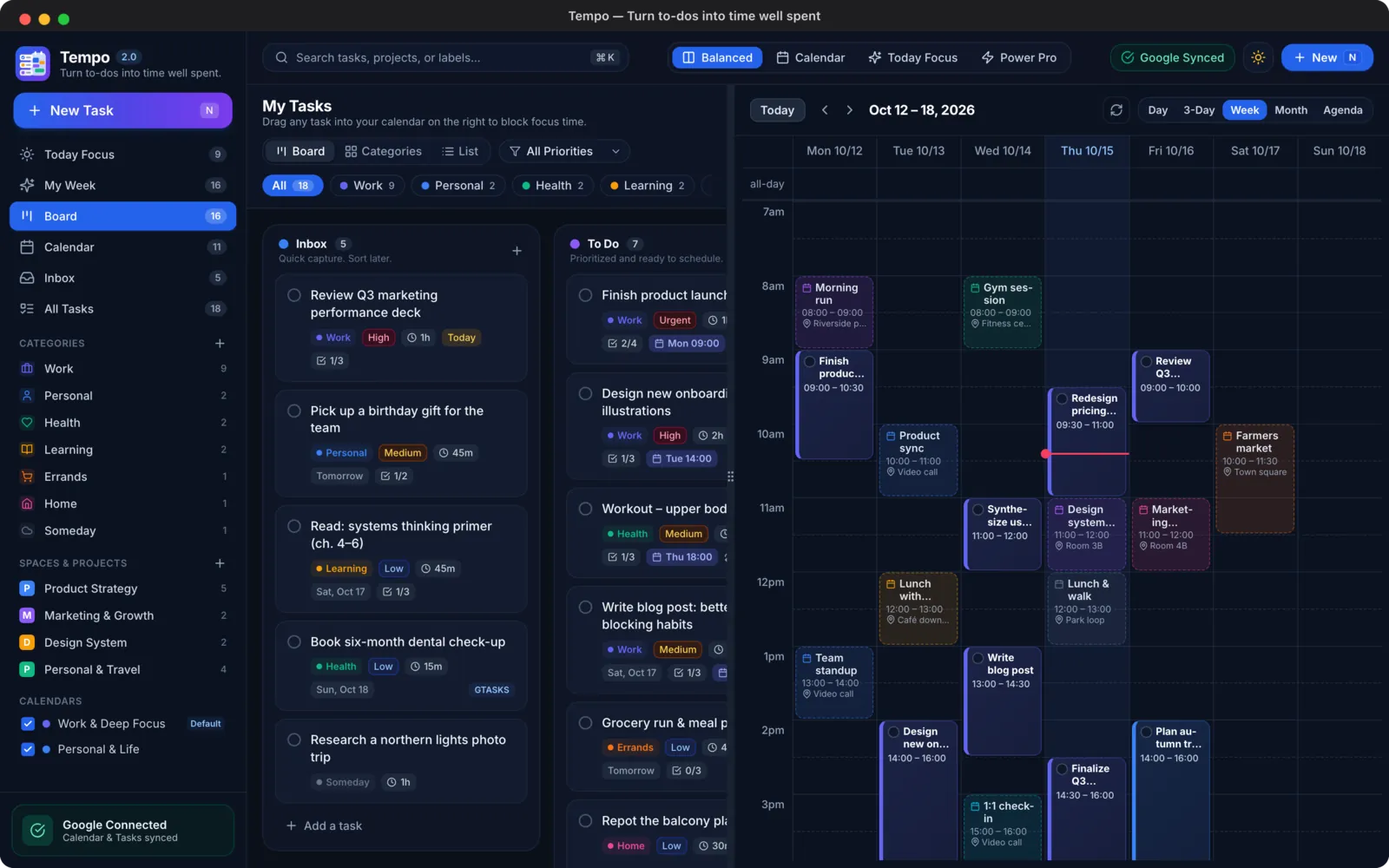
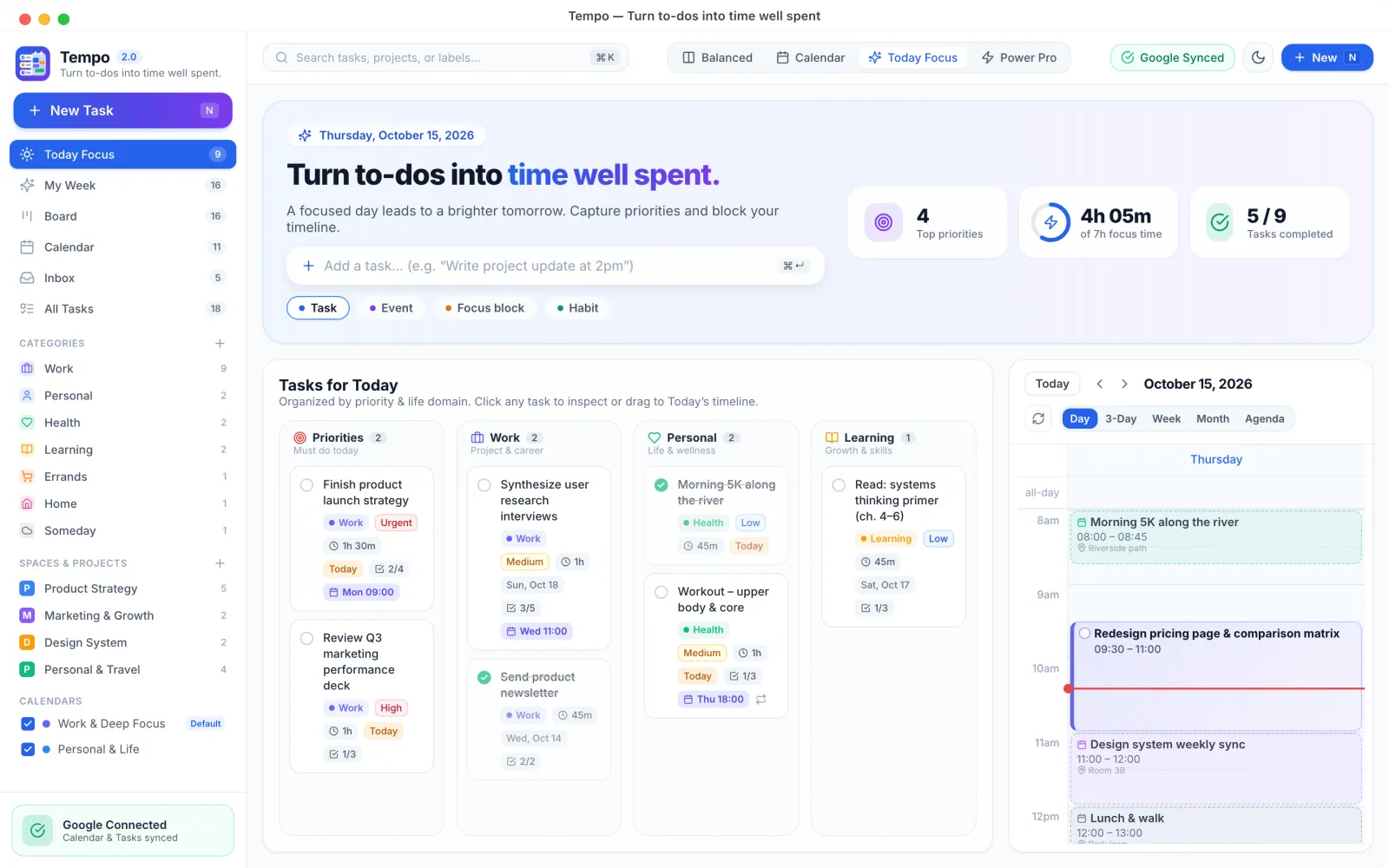
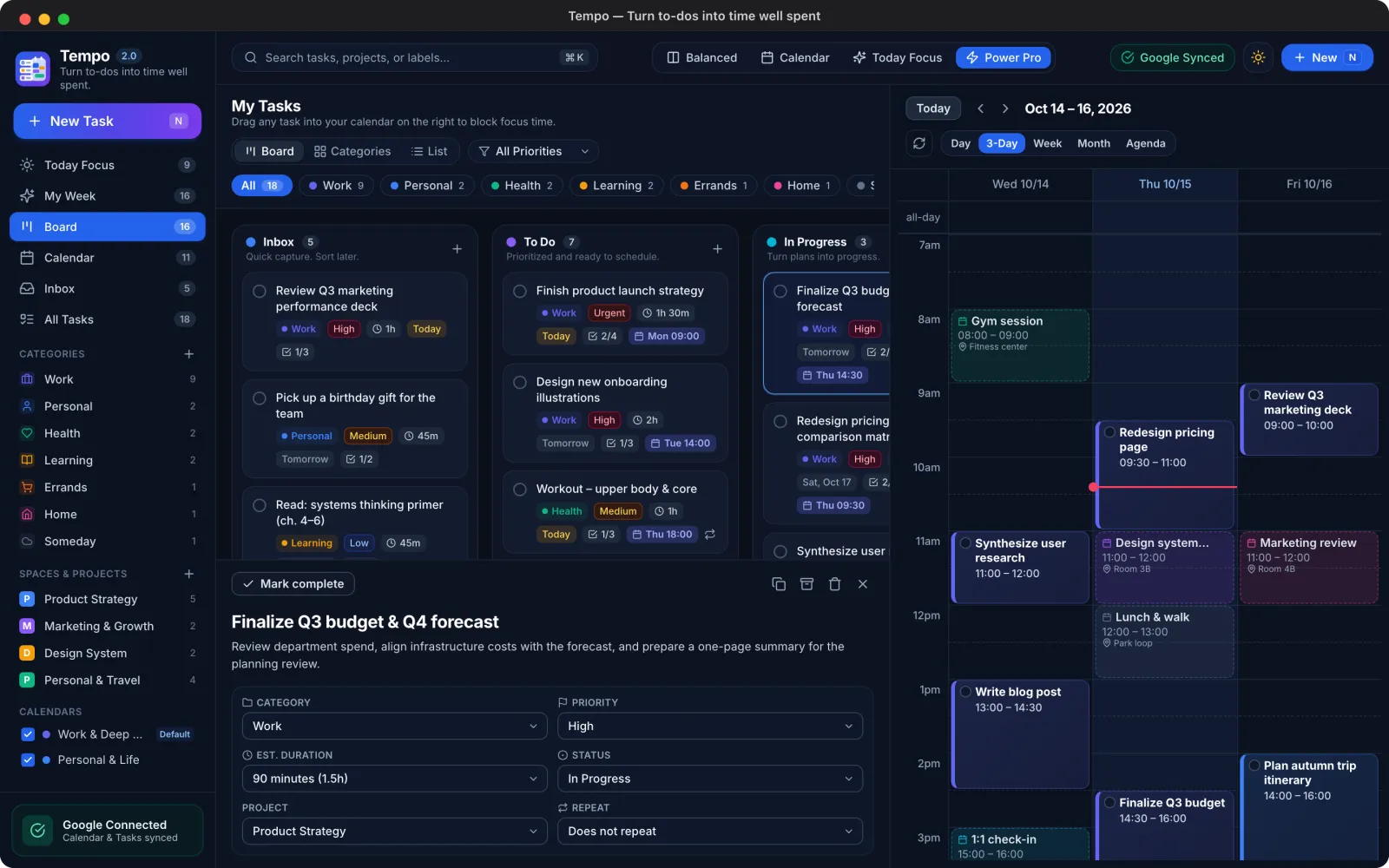
Different days want different screens, so Tempo has four layouts, each in light and dark. Switch from the segmented control in the top bar, the sidebar, the command palette or a shortcut. The choice lands in user_preferences in the database, together with the theme and panel widths, so it survives a reload. The animations respect prefers-reduced-motion.
The layout switcher and the theme toggle (8-second loop). Mockup rebuilt from source with Montage.
| Layout | Top bar label | Web shortcut | Tempo.app | What it's for |
|---|---|---|---|---|
| Balanced Workspace | Balanced | B | ⌘1 | Board and calendar side by side, with a resizable split |
| Calendar First | Calendar | C | ⌘2 | Planning the week, with a compact task drawer and an inline inspector |
| Daily Focus | Today Focus | T | ⌘3 | Getting through today: focus progress, priorities and a day timeline |
| Power User | Power Pro | command palette | ⌘4 | High-density kanban with a docked inspector and a weekly time grid |
Balanced Workspace is the default: sidebar with categories and projects, the task center (board, categories or list) and the calendar, with a handle between the last two to resize them.
Daily Focus is the calm one. A ring tracks focus time against a daily goal (420 minutes by default), the quick-capture bar adds a Task, Event, Focus block or Habit, and today's tasks are grouped by category next to a one-day timeline.
Power User is the opposite: compact kanban cards, a task inspector docked at the bottom and a time grid, with as many tasks on screen as possible. It looks particularly good in the dark.
All screens are mockups rebuilt from source with Montage, with synthetic demo data.
The small things that add up
- Board, grid or list. Four default columns (Inbox, To Do, In Progress, Done) with drag-and-drop inside and across columns. Add, rename, reorder and delete columns, or see the same tasks as a Categories grid or a List.
- One calendar for everything. Day, 3-Day, Week, Month and Agenda views show Tempo sessions next to synced calendar events.
- Real task details. 7 categories, 5 priorities (Urgent to None), projects, estimates, due dates, subtasks, attachments, duplicate and bulk actions.
- Trello import. Paste a Trello board's JSON export in Integrations and Tempo creates the project, columns, tasks, labels and subtasks.
- Keyboard first. A command palette on
⌘K/Ctrl K, plus single-key shortcuts:Nfor a new task,/to search,B,CandTfor layouts. They're ignored while you type in a field, as they should be. - Zero-setup database. It uses PostgreSQL 16 from Docker when it's running, and quietly falls back to embedded PostgreSQL (PGlite) when it isn't.
- Tempo.app for macOS. A thin AppKit and
WKWebViewwrapper with a native menu bar, a status bar menu and its own copy of the local server, plus menu shortcuts like⇧⌘Rto sync now and⇧⌘Dto flip the theme.
Under the hood
A TypeScript monorepo on pnpm workspaces and Turborepo, with three apps and a handful of packages:
tempo/
├── apps/
│   ├── api/                    Hono REST API and static server (port 4000)
│   ├── web/                    React 18 web app (port 5175)
│   └── macos/                  Tempo.app wrapper in Swift, and its build script
├── packages/
│   ├── config/                 shared strict tsconfigs
│   ├── database/               Drizzle schema, migrations, seed and the PGlite fallback
│   ├── shared/                 types, Zod schemas, smart scheduler, Trello import
│   ├── ui/                     TempoLogo, Kbd and the cn helper
│   └── integrations/
│       ├── google-calendar/    OAuth PKCE, token encryption, incremental calendar sync
│       └── google-tasks/       Google Tasks import, two-way sync, conflict resolution
└── tests/
    ├── unit/                   Vitest suite (scenarios A–G)
    └── e2e/                    Playwright suite
| Layer | Choice |
|---|---|
| Web app | Vite and React 18, Tailwind CSS, FullCalendar 6, @dnd-kit, TanStack Query and a Zustand store |
| API | One Hono 4 app that serves the REST routes and the built web app |
| Data | Drizzle ORM over 19 tables, PostgreSQL 16 or PGlite |
| Shared rules | Types, Zod schemas, the smart scheduler and the Trello parser in packages/shared |
| Mac app | Swift, AppKit and WKWebView, macOS 13 or later |
Requests flow from the web app (or Tempo.app, which just loads it) to /api on the Hono app, which talks to Postgres and to the Google sync packages. Every request resolves to the single local user.
The tests are my favorite kind: scenario-shaped. The Vitest suite runs the API against an in-memory PGlite database and covers PKCE and AES-256-GCM, the smart scheduler, the Trello parser, and scenarios A to G: scheduling a task without duplicating it, rescheduling, Calendar sync and remote moves, completing a task, Tasks conflicts, the offline retry path and saved preferences. The Playwright suite starts both servers, drags a task onto Thursday 14:00 in a real browser and checks that it survives a reload.
Building from source is short, once you have access:
cp .env.example .env              # copy the settings template
set -a; source .env; set +a       # export it: nothing loads .env automatically
docker compose up -d              # optional: PostgreSQL 16 on port 54329
pnpm install                      # install the workspace
pnpm db:migrate                   # apply the Drizzle migrations
pnpm db:seed                      # load the demo workspace
pnpm dev                          # API on :4000, web app on :5175
On privacy: Tempo is local and single-user. Tasks, sessions and preferences live in your own PostgreSQL or PGlite database, there are no accounts, and there's no telemetry, tracking or crash reporting. Without Google credentials nothing leaves your machine for sync; with them, the API only talks to Google to sign in, refresh tokens and read your name and email from userinfo. One request goes out either way: the web app loads Inter from Google Fonts.
What's not there yet
Tempo is in development, and its README is upfront about the edges:
- Calendar and Tasks calls are simulated. The next step is calling the real Google Calendar v3 and Google Tasks v1 APIs when live credentials are set, and keeping the wire stores for tests.
- One user, no sign-in. Every browser session maps to the same default user, so it shouldn't be exposed beyond
localhost. Sign-in and per-user data are on the roadmap. .envisn't loaded for you. You export it yourself for now. Loading it automatically, and aligningWEB_URLin.env.examplewith the dev server port, are next.- Tempo.app needs the checkout. It starts the server from the repo path written at build time, needs
pnpmand Node on thePATH, and is ad-hoc signed, not notarized. A standalone app that bundles the server is planned. - Power User has no single-key shortcut. Use the top bar, the command palette or
⌘4in Tempo.app, until it gets one.
Tasks. Time. Tempo.

Tempo has its own card on the projects page, with the demo loop, the explainer and the stack at a glance.
Curious about the source? It's private, but access can be granted to anyone interested in contributing. Get in touch.