⚡ VoltWake: an alarm that won't take no for an answer
VoltWake is for heavy sleepers who need an alarm that keeps coming back until they are really up, and for anyone who trains in rounds. It runs alarms, smart wake-ups like Couch Mode, concurrent timers and interval workouts on iPhone and Apple Watch.
By Dennis Bruijn · · 10 min read · #projects #apple #swift #swiftui #alarmkit #watchos
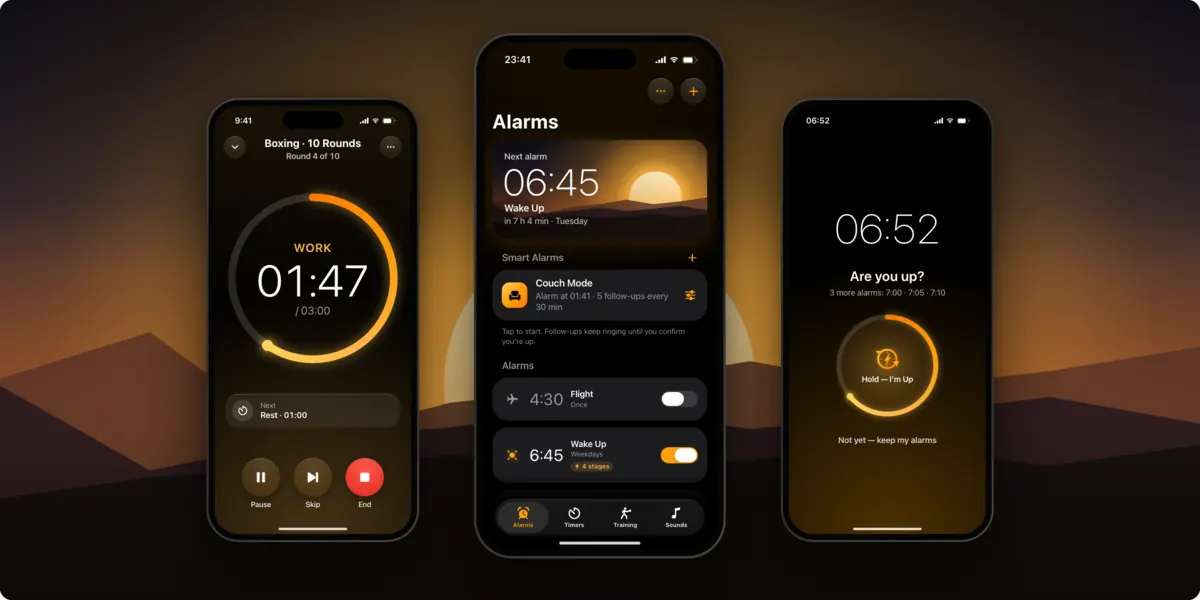
A brand graphic made with Montage. The phone screens in it are recreated from the SwiftUI source.
Here's the thing about a normal alarm: it trusts you. It rings, you tap Stop, and it assumes the person who tapped Stop is awake. That's a bold assumption. The person who tapped Stop is often a half-conscious creature on a couch who will be asleep again in ninety seconds, and the alarm is already off duty.
VoltWake doesn't trust you. Stopping a ring only silences that ring. The next one is already counting down, and the only way to call the whole thing off is to prove you're up by holding a button for two full seconds. It's an alarm with trust issues, and I mean that as a compliment.
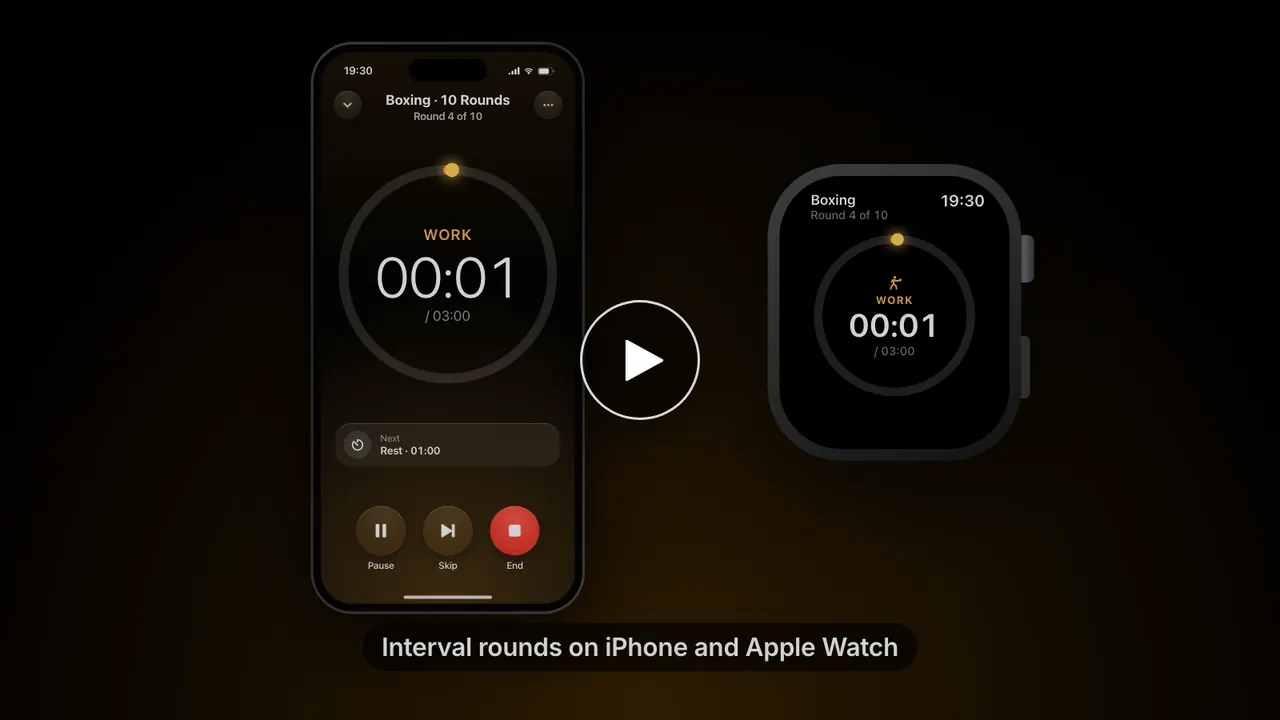
It also turned into a training clock along the way, because the same engine that counts down to the next follow-up is very good at counting down to the next round. Here's the 29-second version, made with Montage, my shared Remotion studio:
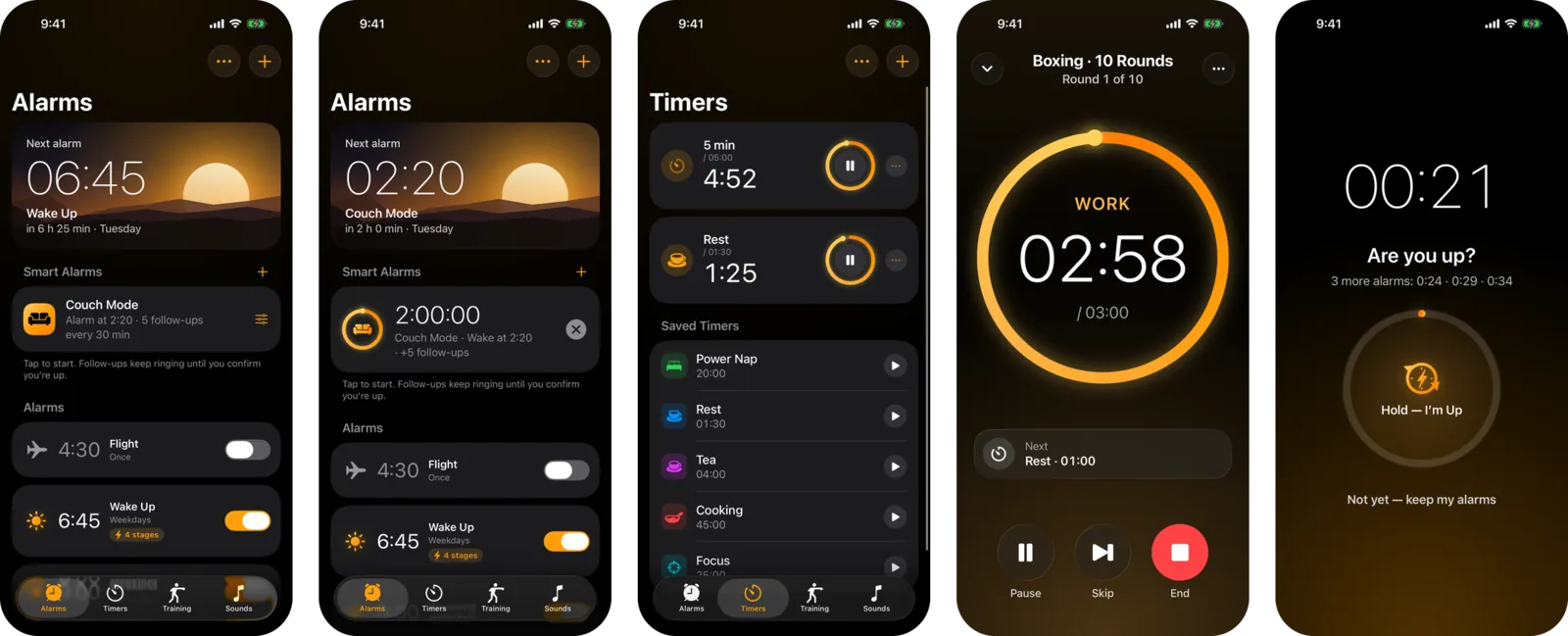
Real app screens from the iOS Simulator.
Every alarm is a real system alarm
The first rule I set: no "please keep the app open" alarms. Every alarm in VoltWake is scheduled as a system alarm with AlarmKit, so iOS rings it when the iPhone is locked, silenced or in Focus, and when VoltWake is closed. One-time and repeating alarms get weekdays, a label, a sound and a snooze each.
On top of that sits the Power Alarm: switch it on and an alarm grows 1 to 8 follow-up stages, evenly spaced or edited one by one, each with its own sound and intensity. Stopping a stage only silences that stage. The next one still rings until you confirm you're up.
And then there are smart alarms, which are one-tap wake-up patterns. The first alarm rings after a delay or at a clock time, followed by up to 8 follow-ups with their own gaps. The built-in one is my favorite feature name I've ever written down: Couch Mode. Tap it, and you get an alarm 2 hours later, then 5 hold-to-confirm follow-ups every 30 minutes. It's for the "I'll just close my eyes for a bit" moment we all lie to ourselves about.
Change the defaults below and watch the ladder rebuild. Then click a stage to pretend you held I'm Up there:
<style>
  :root { color-scheme: dark; --amber: #ffa51f; --teal: #3ec8c8; --dim: #8a8a99; }
  * { box-sizing: border-box; }
  body { margin: 0; padding: 14px; background: #000; color: #f4f4f5; font: 13px/1.4 system-ui, sans-serif; }
  .controls { display: flex; flex-wrap: wrap; gap: 8px 14px; margin-bottom: 12px; color: var(--dim); }
  label { display: flex; align-items: center; gap: 6px; }
  input { width: 64px; background: #111; color: #fff; border: 1px solid #333; border-radius: 6px; padding: 3px 6px; font: inherit; }
  input[type=time] { width: 92px; }
  ol { list-style: none; margin: 0; padding: 0; display: grid; gap: 6px; }
  li { display: flex; justify-content: space-between; align-items: center; padding: 7px 10px; border-radius: 10px; background: #111; border: 1px solid #222; cursor: pointer; }
  li .t { font-variant-numeric: tabular-nums; font-weight: 600; color: var(--amber); }
  li.first { border-color: var(--amber); }
  li.cancel { opacity: .35; text-decoration: line-through; }
  li.up { border-color: var(--teal); }
  li.up .t { color: var(--teal); }
  #note { margin-top: 10px; color: var(--dim); min-height: 1.4em; }
</style>
<div class="controls">
  <label>Tap at <input id="start" type="time" value="19:00"></label>
  <label>Delay (min) <input id="delay" type="number" min="1" value="120"></label>
  <label>Follow-ups <input id="count" type="number" min="1" max="8" value="5"></label>
  <label>Every (min) <input id="gap" type="number" min="1" value="30"></label>
</div>
<ol id="ladder"></ol>
<p id="note">Click a stage to hold I'm Up there.</p>
<script>
  const $ = (id) => document.getElementById(id);
  let upAt = null;
  const fmt = (m) => { m = ((m % 1440) + 1440) % 1440; return String(Math.floor(m / 60)).padStart(2, "0") + ":" + String(m % 60).padStart(2, "0"); };
  function render() {
    const [h, m] = $("start").value.split(":").map(Number);
    const first = h * 60 + m + Math.max(1, +$("delay").value || 1);
    const count = Math.min(8, Math.max(1, +$("count").value || 1));
    const gap = Math.max(1, +$("gap").value || 1);
    const stages = [first];
    for (let i = 1; i <= count; i++) stages.push(first + i * gap);
    if (upAt !== null && upAt >= stages.length) upAt = null;
    $("ladder").innerHTML = stages.map((t, i) => {
      const cls = [i === 0 ? "first" : "", upAt !== null && i > upAt ? "cancel" : "", i === upAt ? "up" : ""].join(" ");
      const name = i === 0 ? "First alarm" : "Follow-up " + i + " (stage " + (i + 1) + " of " + stages.length + ")";
      return '<li data-i="' + i + '" class="' + cls + '"><span>' + name + '</span><span class="t">' + fmt(t) + "</span></li>";
    }).join("");
    $("note").textContent = upAt === null
      ? "Stop only silences one stage. Click a stage to hold I'm Up there."
      : "I'm Up at " + fmt(stages[upAt]) + ": " + (stages.length - 1 - upAt) + " follow-up(s) canceled. Your other alarms are left alone.";
  }
  $("ladder").addEventListener("click", (e) => { const li = e.target.closest("li"); if (li) { upAt = +li.dataset.i; render(); } });
  document.querySelectorAll("input").forEach((el) => el.addEventListener("input", () => { upAt = null; render(); }));
  render();
</script>
A small JavaScript sketch of the Couch Mode rule from the README, not the app's planner (that's Swift, in VoltWakeCore). The real limits are 1 to 8 follow-ups, and you change the defaults in Settings › Smart Alarms.
Two seconds to prove you're awake
So how do you end a wake-up? Not with a tap. I'm Up opens the Wake Check: a 2-second hold while a ring fills. A quick tap does nothing, so turning off the safety net is a deliberate act. When the hold lands, the confirmation tells you how many follow-ups it canceled, and your next scheduled alarm stays as it was.
Recreated in Montage from the SwiftUI source, including the 2-second hold timing.
Two seconds sounds like nothing. Try it while you're 80% asleep. Or try it right here, with a mouse, a finger or the space bar. Let go early and see what happens:
<style>
  :root { color-scheme: dark; --amber: #ffa51f; --dim: #8a8a99; }
  body { margin: 0; min-height: 220px; display: grid; place-items: center; background: #000; color: #f4f4f5; font: 14px/1.4 system-ui, sans-serif; }
  .wrap { display: grid; justify-items: center; gap: 12px; text-align: center; }
  button { position: relative; width: 132px; height: 132px; border-radius: 50%; border: 0; background: #141414; color: #fff; font: 600 15px system-ui; cursor: pointer; touch-action: none; user-select: none; -webkit-user-select: none; }
  button:focus-visible { outline: 2px solid var(--amber); outline-offset: 4px; }
  svg { position: absolute; inset: -8px; width: 148px; height: 148px; transform: rotate(-90deg); pointer-events: none; }
  circle { fill: none; stroke-width: 8; }
  .track { stroke: #262626; }
  .fill { stroke: url(#energy); stroke-linecap: round; }
  #msg { color: var(--dim); min-height: 1.4em; }
  .done #msg { color: var(--amber); font-weight: 600; }
</style>
<div class="wrap" id="wrap">
  <button id="btn" aria-describedby="msg">
    <svg viewBox="0 0 148 148" aria-hidden="true">
      <defs><linearGradient id="energy"><stop offset="0" stop-color="#ffd166"/><stop offset="1" stop-color="#ff7a1a"/></linearGradient></defs>
      <circle class="track" cx="74" cy="74" r="66"/>
      <circle class="fill" id="ring" cx="74" cy="74" r="66"/>
    </svg>
    Hold<br>I'm Up
  </button>
  <div id="msg">Press and hold for 2 seconds.</div>
</div>
<script>
  const HOLD_MS = 2000, C = 2 * Math.PI * 66;
  const ring = document.getElementById("ring"), msg = document.getElementById("msg"), wrap = document.getElementById("wrap"), btn = document.getElementById("btn");
  ring.style.strokeDasharray = C; ring.style.strokeDashoffset = C;
  let start = null, raf = 0, done = false;
  function tick(now) {
    const p = Math.min(1, (now - start) / HOLD_MS);
    ring.style.strokeDashoffset = C * (1 - p);
    if (p < 1) { raf = requestAnimationFrame(tick); return; }
    done = true; wrap.classList.add("done");
    msg.textContent = "You're up. The rest of this wake-up is canceled.";
    setTimeout(reset, 2200);
  }
  function press(e) { if (done || start !== null) return; e.preventDefault(); start = performance.now(); msg.textContent = "Keep holding..."; raf = requestAnimationFrame(tick); }
  function release() {
    if (start === null || done) return;
    cancelAnimationFrame(raf); start = null; ring.style.strokeDashoffset = C;
    msg.textContent = "Too quick. A tap does nothing, and the next follow-up still rings.";
  }
  function reset() { done = false; start = null; wrap.classList.remove("done"); ring.style.strokeDashoffset = C; msg.textContent = "Press and hold for 2 seconds."; }
  btn.addEventListener("pointerdown", press);
  ["pointerup", "pointerleave", "pointercancel"].forEach((t) => btn.addEventListener(t, release));
  btn.addEventListener("keydown", (e) => { if ((e.key === " " || e.key === "Enter") && !e.repeat) press(e); });
  btn.addEventListener("keyup", (e) => { if (e.key === " " || e.key === "Enter") release(); });
</script>
If the hold feels like too much ceremony, one-tap confirmation is an option. I keep the hold.
The countdown is always on the Lock Screen
A wake-up that keeps coming back should at least tell you when. Once a smart alarm is running, a Live Activity counts down to its first alarm, and then each follow-up counts down to its turn, on the Lock Screen and in the Dynamic Island. Snoozes count down there too. And every one of them carries an I'm Up button, so you can end the wake-up without hunting for the app.
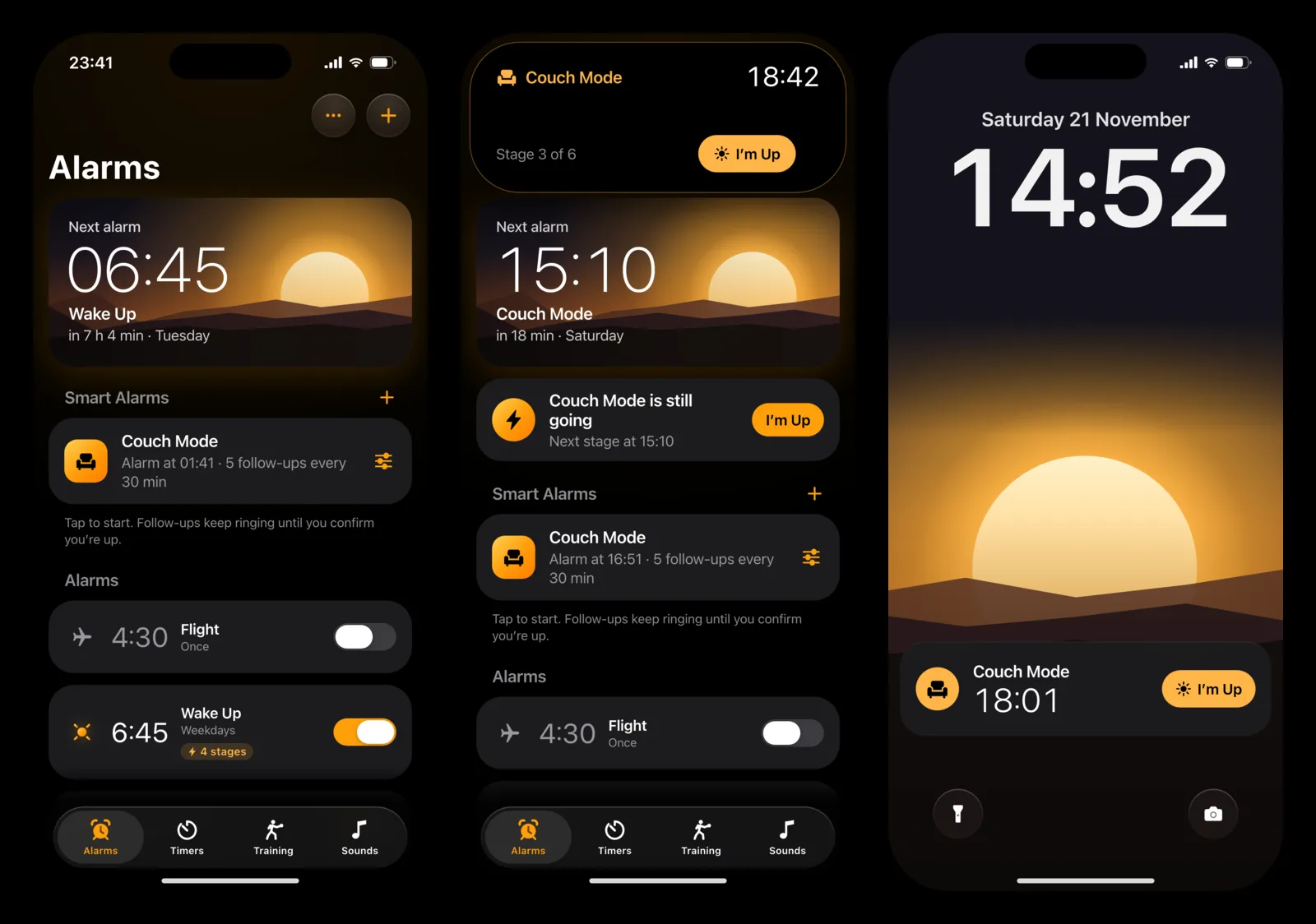
Recreated in Montage from the SwiftUI source: VoltWake hasn't been captured on a device yet.
There's one thing VoltWake doesn't do, and it's on purpose that I say so: it can't get louder. Apps can't raise or override the alarm volume. So a Power Alarm escalates by being more insistent, with more insistent sounds and more stages, not by blowing out your eardrums.
Training in rounds, on iPhone and Apple Watch
Now for the other half of the name. The Training tab has seven interval templates: Boxing (10 rounds), HIIT 40/20, Tabata, EMOM 10, AMRAP 12, Strength (5 sets) and Custom. Each one gets warm-up, work, rest, sets, cool-down, a final warning, 3-2-1 cues and a sound per phase.
The active workout screen keeps it simple: the phase, the round, a large countdown inside a glowing ring and the next interval, with Pause, Skip and End below. Work is amber, rest is teal, and the screen flips between them on its own.
Both recreated in Montage from the SwiftUI source (ActiveWorkoutView.swift).
Here's that phase flip as a toy: HIIT 40/20, sped up ten times so you don't have to actually do burpees to see it work.
<style>
  :root { color-scheme: dark; --work: #ffa51f; --rest: #3ec8c8; --dim: #8a8a99; }
  body { margin: 0; min-height: 230px; display: grid; place-items: center; background: #000; color: #f4f4f5; font: 13px/1.4 system-ui, sans-serif; transition: background .4s; }
  body.work { background: radial-gradient(circle at 50% 40%, #2a1a05, #000 70%); }
  body.rest { background: radial-gradient(circle at 50% 40%, #062424, #000 70%); }
  .card { display: grid; justify-items: center; gap: 6px; }
  .ring { position: relative; width: 150px; height: 150px; }
  svg { width: 150px; height: 150px; transform: rotate(-90deg); }
  circle { fill: none; stroke-width: 9; }
  .track { stroke: #222; }
  #arc { stroke: var(--c, var(--work)); stroke-linecap: round; filter: drop-shadow(0 0 6px var(--c, var(--work))); }
  .center { position: absolute; inset: 0; display: grid; place-content: center; text-align: center; }
  #phase { font-weight: 700; letter-spacing: .12em; color: var(--c, var(--work)); }
  #time { font-size: 34px; font-variant-numeric: tabular-nums; font-weight: 300; }
  #cue { font-size: 46px; font-weight: 700; color: var(--c, var(--work)); }
  #meta { color: var(--dim); }
  button { background: #1a1a1a; color: #fff; border: 1px solid #333; border-radius: 999px; padding: 5px 16px; font: inherit; cursor: pointer; }
</style>
<div class="card">
  <div id="meta">HIIT 40/20 · Round 1 of 4 · 10x speed</div>
  <div class="ring">
    <svg viewBox="0 0 150 150" aria-hidden="true"><circle class="track" cx="75" cy="75" r="64"/><circle id="arc" cx="75" cy="75" r="64"/></svg>
    <div class="center"><div id="phase">WORK</div><div id="time">00:40</div></div>
  </div>
  <button id="toggle">Pause</button>
</div>
<script>
  const SPEED = 10, ROUNDS = 4, C = 2 * Math.PI * 64;
  const plan = []; for (let r = 1; r <= ROUNDS; r++) { plan.push({ name: "WORK", len: 40, r }); plan.push({ name: "REST", len: 20, r }); }
  const arc = document.getElementById("arc"); arc.style.strokeDasharray = C;
  let i = 0, left = plan[0].len, last = performance.now(), running = true;
  const $ = (id) => document.getElementById(id);
  function paint() {
    const p = plan[i], work = p.name === "WORK";
    document.body.className = work ? "work" : "rest";
    document.documentElement.style.setProperty("--c", work ? "var(--work)" : "var(--rest)");
    $("phase").textContent = p.name;
    const s = Math.ceil(left);
    $("time").innerHTML = s <= 3 && s > 0 ? '<span id="cue">' + s + "</span>" : "00:" + String(s).padStart(2, "0");
    $("meta").textContent = "HIIT 40/20 · Round " + p.r + " of " + ROUNDS + " · 10x speed";
    arc.style.strokeDashoffset = C * (1 - left / p.len);
  }
  function frame(now) {
    const dt = (now - last) / 1000 * SPEED; last = now;
    if (running) { left -= dt; if (left <= 0) { i = (i + 1) % plan.length; left = plan[i].len; } }
    paint(); requestAnimationFrame(frame);
  }
  $("toggle").onclick = () => { running = !running; $("toggle").textContent = running ? "Pause" : "Resume"; };
  requestAnimationFrame(frame);
</script>
The Apple Watch app runs on its own, without your iPhone nearby. It has timers with a crown-driven quick timer, interval workouts as HealthKit workout sessions with heart rate and haptic phase changes, one quick alarm through watchOS's smart-alarm session, and complications in circular, rectangular, inline and corner sizes. Your iPhone alarms show up on the watch through iOS itself, read-only, and timer and workout presets plus shared preferences sync both ways over WatchConnectivity.
The rest of the toolbox
A few more things live in the app, because once you have a reliable clock you start wanting it everywhere:
- Concurrent timers. Any number of AlarmKit timers that ring with the app closed, with pause, resume, add time and restart. Five presets come with the app: Power Nap, Rest, Tea, Cooking and Focus.
- Sound library. Import MP3, M4A, AAC, WAV, AIFF, CAF and FLAC from Files, the Share Sheet or an HTTPS link, up to 250 MB and 2 hours. Trim with a waveform and fade in or out. 12 sounds are bundled.
- Widgets and Shortcuts. Next Alarm and Quick Start widgets for the Home Screen, Lock Screen and StandBy, and eight App Shortcuts for Siri, the Shortcuts app and the Action Button.
- Nightstand Mode. A dim, true-black bedside clock with the next alarm, an optional red display and keep-screen-on while VoltWake is open. Pure black at 3 a.m. is a kindness.
The shortcuts read exactly how you'd say them half asleep:
| Shortcut | Action |
|---|---|
| "Start Couch Mode with VoltWake" | Starts Couch Mode |
| "Start a VoltWake smart alarm" | Starts one of your smart alarms |
| "Create an alarm in VoltWake" | Creates a new alarm |
| "Turn on (alarm) in VoltWake" | Switches an alarm on or off |
| "Start a VoltWake timer" | Starts a timer preset |
| "Start boxing in VoltWake" | Starts the boxing workout |
| "Start a VoltWake workout" | Starts a workout preset |
| "Show my VoltWake alarms" | Opens the Alarms tab |
And because an alarm app is something you look at every single night, you get to pick its face in Settings › App Icon:
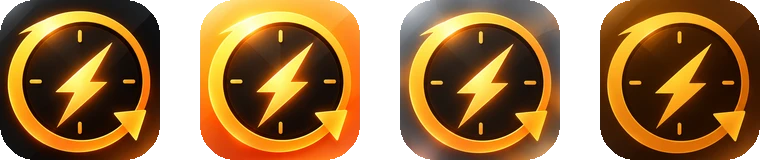
Midnight (the default), Ember, Glass and Bronze.
How it works: plan, then reconcile
This is the part I'm proudest of, and it's the least visible. Scheduling in VoltWake is declarative. The app doesn't schedule alarms one call at a time. Instead:
- Plan.
AlarmPlannerin theVoltWakeCoreSwift package expands alarms, Power Alarms, smart alarms and naps into dated stages, with DST-aware occurrences. Follow-ups are planned about a week ahead. - Reconcile.
AlarmCoordinatorhands that plan toAlarmReconciler, which diffs it against what AlarmKit already holds and applies only the changes throughAlarmKitSystem. It never silences an alarm that's ringing or counting down. UI tests swap in an in-memory alarm system. - Show. AlarmKit rings the alarm and drives the alarm Live Activity. The widgets read a
WidgetSnapshotfrom the App Group. - Confirm. I'm Up runs an App Intent from
Shared/AlarmIntents.swiftthat opens the Wake Check or, with one-tap confirmation, cancels the remaining stages directly. - Sync.
PhoneSyncServiceandWatchSyncServiceexchange presets and preferences over WatchConnectivity, andSyncMergeresolves conflicts.
SwiftUI screens ──▶ VoltWakeStore (SwiftData) ──▶ AlarmCoordinator ──▶ AlarmPlanner (VoltWakeCore)
App Intents (Shortcuts, Live Activity buttons) ──▶ AlarmCoordinator ──▶ AlarmReconciler ──▶ AlarmKit
AlarmKit ──▶ Lock Screen and Dynamic Island (Live Activity)
AlarmKit ──▶ paired Apple Watch
VoltWakeStore ◀── WatchConnectivity ──▶ watchOS app ──▶ workout engine, countdowns, sync merge
Why bother? Because "what should exist" is easy to test, and "what did I already tell the system three edits ago" is where alarm apps go to die. The reconciler only ever applies a diff. Play with the idea below: toggle alarms in the plan, mark one as ringing, and see what the reconciler would do.
<style>
  :root { color-scheme: dark; --amber: #ffa51f; --teal: #3ec8c8; --red: #ff5a52; --dim: #8a8a99; }
  * { box-sizing: border-box; }
  body { margin: 0; padding: 14px; background: #000; color: #f4f4f5; font: 13px/1.4 system-ui, sans-serif; }
  .cols { display: grid; grid-template-columns: 1fr 1fr; gap: 14px; }
  h3 { margin: 0 0 6px; font-size: 11px; letter-spacing: .1em; text-transform: uppercase; color: var(--dim); }
  label { display: flex; gap: 8px; align-items: center; padding: 5px 8px; border-radius: 8px; background: #111; margin-bottom: 4px; }
  ul { list-style: none; margin: 0; padding: 0; }
  li { padding: 5px 8px; border-radius: 8px; background: #111; margin-bottom: 4px; display: flex; justify-content: space-between; gap: 8px; }
  .add { color: var(--teal); } .del { color: var(--red); } .keep { color: var(--dim); } .safe { color: var(--amber); }
  small { color: var(--dim); }
</style>
<div class="cols">
  <div>
    <h3>The plan (what should exist)</h3>
    <div id="plan"></div>
    <h3 style="margin-top:10px">Ringing right now</h3>
    <select id="ringing" style="width:100%;background:#111;color:#fff;border:1px solid #333;border-radius:6px;padding:4px"></select>
  </div>
  <div>
    <h3>Reconciler's diff</h3>
    <ul id="diff"></ul>
    <small>AlarmKit currently holds the alarms marked "held".</small>
  </div>
</div>
<script>
  const all = ["Wake Up 06:45", "Couch Mode 21:00", "Follow-up 21:30", "Follow-up 22:00", "Power Nap timer"];
  const want = new Set(["Wake Up 06:45", "Couch Mode 21:00", "Follow-up 21:30"]);
  const held = new Set(["Wake Up 06:45", "Couch Mode 21:00", "Follow-up 22:00", "Power Nap timer"]);
  const $ = (id) => document.getElementById(id);
  $("plan").innerHTML = all.map((a) => '<label><input type="checkbox" value="' + a + '"' + (want.has(a) ? " checked" : "") + "> " + a + (held.has(a) ? " <small>(held)</small>" : "") + "</label>").join("");
  $("ringing").innerHTML = '<option value="">Nothing</option>' + [...held].map((a) => "<option>" + a + "</option>").join("");
  $("ringing").value = "Follow-up 22:00";
  function render() {
    const ringing = $("ringing").value;
    const rows = [];
    for (const a of all) {
      const w = want.has(a), h = held.has(a);
      if (w && !h) rows.push(["add", "schedule", a]);
      else if (!w && h && a === ringing) rows.push(["safe", "leave alone (ringing)", a]);
      else if (!w && h) rows.push(["del", "cancel", a]);
      else if (w && h) rows.push(["keep", "no change", a]);
    }
    $("diff").innerHTML = rows.map(([c, verb, a]) => '<li><span>' + a + '</span><span class="' + c + '">' + verb + "</span></li>").join("");
  }
  $("plan").addEventListener("change", (e) => { e.target.checked ? want.add(e.target.value) : want.delete(e.target.value); render(); });
  $("ringing").addEventListener("change", render);
  render();
</script>
A toy model of the rule in the README, not the Swift reconciler. The real one diffs the plan against what AlarmKit already holds.
The code is split the same way:
voltwake/
├── Packages/VoltWakeCore/   domain logic: alarm planning, smart alarms, countdowns, workouts, sync, audio rules
├── VoltWake/                iOS app: SwiftUI features, SwiftData store, AlarmKit services, App Intents
├── Shared/                  code shared with the widgets: brand tokens, alarm intents, widget snapshot
├── VoltWakeWidgets/         alarm and workout Live Activities, Home Screen, Lock Screen and StandBy widgets
├── VoltWakeWatch/           independent watchOS app: timers, HealthKit workouts, quick alarm, sync
├── VoltWakeWatchWidgets/    watch complications
├── VoltWakeTests/           integration tests hosted in the app
├── VoltWakeUITests/         UI journeys, the screenshot tour and the real-AlarmKit smoke test
├── Design/                  logo marks, the four app icons, sound scripts and credits
├── docs/                    product scope, platform notes, testing report, README media
└── project.yml              XcodeGen spec
Keeping the domain logic in a Swift package pays off in testing. VoltWakeCore has 78 Swift Testing tests for alarm planning, smart alarms, occurrences, countdowns, workouts, sync and audio rules, and they run on the Mac. The app hosts 46 integration tests covering the alarm coordinator, timers, the sound library, persistence and sync. VoltWakeUITests drives the core journeys (alarms, Power Alarms, Couch Mode, smart alarms, audio import, concurrent timers, workouts and the Wake Check) against in-memory storage and an in-memory alarm system, and AlarmKitSmokeUITests runs against the real AlarmKit on purpose.
Nothing leaves your devices
An alarm clock has no business knowing who you are, so VoltWake doesn't ask:
- No accounts and no backend. Alarms, presets, sounds and settings stay on your devices, in SwiftData and an App Group.
- No analytics. There is no analytics, telemetry or third-party SDK in the code.
- One network call, and only when you ask. Importing a sound from a link fetches that one HTTPS file. Nothing is uploaded.
- Your watch, not a server. Presets and preferences sync between your iPhone and Apple Watch over WatchConnectivity.
- Health stays in Health. On the watch, heart rate is read during a workout and the workout is saved to Health. VoltWake sends it nowhere else.
Under the hood
Swift 6 · SwiftUI with Liquid Glass · AlarmKit · ActivityKit and WidgetKit · SwiftData · App Intents · HealthKit · WatchConnectivity. It runs on iOS 26+ and watchOS 26+, there are no third-party dependencies, and the Xcode project is generated with XcodeGen.
If you have access to the source, building it from source looks like this (Xcode 27 with the iOS 27 and watchOS 27 SDKs):
brew install xcodegen             # once
xcodegen generate                 # only needed after adding or removing files
open VoltWake.xcodeproj
Pick the VoltWake scheme for iPhone (it embeds the watch app) or VoltWakeWatch for the watch. The simulator runs without a development team.
What's not there yet
VoltWake is in development, and the biggest caveat is a big one, so here it is plainly: it hasn't been tested on a real iPhone or Apple Watch yet. All testing so far ran in the simulator, and a simulator can't prove that an alarm rings on a locked, silenced phone. The physical-device checklist in the repo comes before any reliability claim, and version 1.0.0 stays a pre-release until it passes. For an app whose whole job is to not let you oversleep, I'm not going to pretend otherwise.
The other limits, straight from the README:
- Custom alarm sounds. Alarms play up to 29 seconds of a sound, prepared as a separate clip. Some iOS 26 builds are reported to fall back to the system sound, so test yours once.
- Follow-ups need a weekly visit. Power Alarm follow-ups are scheduled about a week ahead and topped up whenever VoltWake or one of its alarms runs. Main alarms repeat on their own.
- Workout Live Activity. It's display-only. Pause and skip need the app open, and background cues play bundled sounds.
- No Share Extension. Audio arrives through Open in, Files and links, so apps that only share through extensions don't list VoltWake.
- English only and no iPad layout. The iPad runs the iPhone layout scaled up.
- Streaming services. Music from streaming services can't be used for alarms. Sounds come from files you import.
And what's next on the roadmap:
- Run the physical-device checklist and drop the pre-release label.
- Skip the next occurrence of a repeating alarm.
- Optional wake challenges as a stronger confirmation, with the 2-second hold staying the default.
- Workout cue audio synced to Apple Watch.
- Interval workout history read back from HealthKit.
- Shared presets as a
.voltwakefile through the Share Sheet. - An iPad layout with timers and the workout side by side.
It sits next to the other things I've built on the projects page.
Curious about the source? It's private, but access can be granted to anyone interested in contributing. Get in touch.